Analyzing Server and Player Issues
A structured approach is essential for efficiently analyzing technical issues on servers or player PCs and resolving them quickly. This article explains which information is needed for troubleshooting and how to collect the relevant system data using the provided tools and manual steps, then send it to Support. This helps us process your request efficiently and find a solution quickly.
Please open a ticket and provide us with the following information in full so that we can analyze the issue efficiently and help you as quickly as possible.
- Components and system information: List all components in use and their versions (for example, iSign Server 8.0.21 with Vocatis, iSign Player 8.0.19), as well as relevant system information (logs, installed programs, and system configuration). This information helps us understand your environment and handle support requests and compatibility checks correctly. To make this easier, we have created a tool to collect this data. Details are provided in the next section.
- Problem, behavior, and context: Describe the action that triggers the problem and all the steps that led to it. Explain how the system actually behaves and how you believe it should respond. Include any error messages, screenshots, or photos of error messages. The more detailed the information, the easier it is to reproduce the behavior.
- Other observations: Tell us about any other anomalies or details that may help with the analysis.
Collecting System Information
The script collects information about the system on which it is run. It supports both players and servers and creates an archive of the collected data that you can then provide to us.
Windows Script
The script collects information about the system on which it is run. It supports both players and servers.
-
Download the script: Support Collector
-
Run the script:
- Right-click support-collector-signed.ps1 and select Run with PowerShell.
- If a security prompt appears, confirm it by selecting Yes (Y).
-
Send the results file: The script creates a ZIP file containing the relevant system information. This data helps us identify the cause of the problem and provide a targeted solution. Please send us the file for further analysis.
Troubleshooting
-
"The file is not digitally signed"
-
The window closes immediately
If PowerShell reports that a file is not digitally signed, this is due to the current execution policy, which is configured by default to allow only digitally signed scripts (or scripts created locally). To run Support Collector with a modified execution policy, open a terminal in the directory containing support-collector-signed.ps1. In Windows 11, you can open a terminal in File Explorer by right-clicking and selecting Open in Terminal from the context menu. Run the following commands in the terminal:
Set-ExecutionPolicy -ExecutionPolicy RemoteSigned -Scope Process
./support-collector-signed.ps1
This allows scripts to run in the current session, including unsigned scripts. The default policy takes effect again when you close the session.
Linux Script
The script collects information about the system on which it is run. It supports both players and servers.
-
Run the script: Enter the following link in a terminal:
wget -qO- https://designoreilingen.sharepoint.com/:u:/s/Operations2/EaWRn6YiNAtIl8LaZVueRNoBGEoOLjLKyCbAvgagmA9WZA?download=1 | sudo bash -
Send the results file: The script creates a file named
support-info.tar.gzin the current directory. Please send it to us for further analysis.
Retrieving Logs from the Web Interface
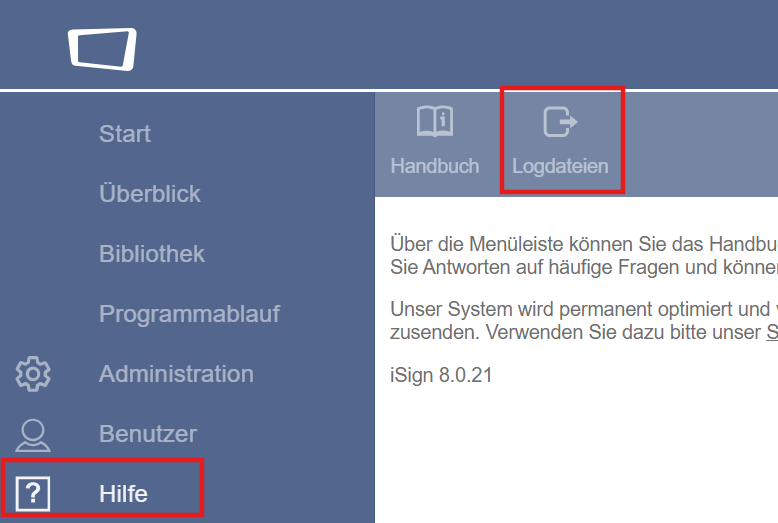
Depending on the system, some logs can be retrieved through the web interface.
In the Logs section under Help in the iSign web interface, you can find the log files.