Add EPDs
In the iSign web interface, check under Settings > Player Notifications whether the player is listed. If it is, select it and click Add Device in the top bar. The player then appears under Devices. If this has already been done, continue as follows:
Select the player under Devices and click Info in the top bar (see screenshot).
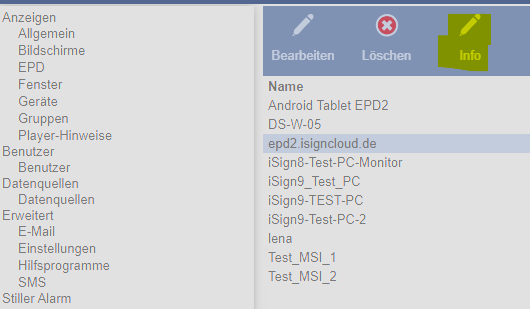
A pop-up displays information about the player. If the EPDs are configured correctly, they appear under EPD.
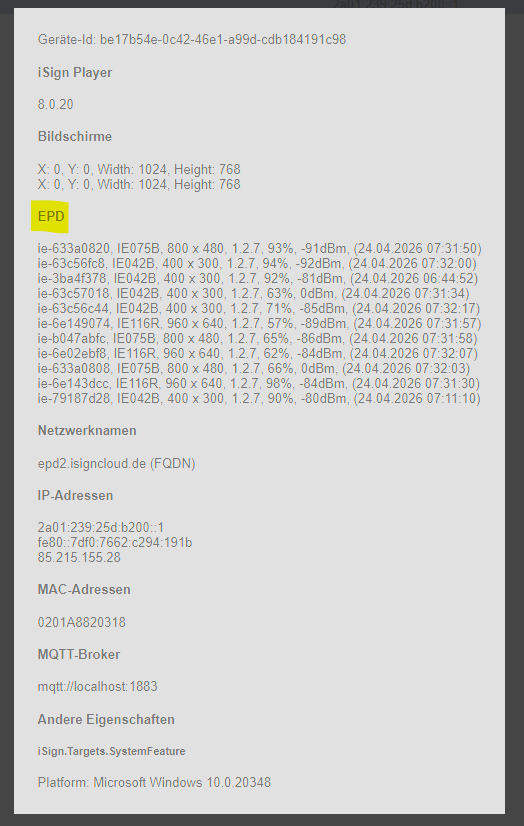
If they appear, activate them under Administration > Displays > EPD and assign a name.

Newly added EPDs appear with a red cross and are inactive. Click the cross, assign a name, enter a location if needed, and enable the screenshot toggle. The EPD then appears in the overview.
You can use the Library to configure and schedule content for the EPD.