Client
Silent Alarm is an add-on module for our Vocatis software, but it can also be used on its own.
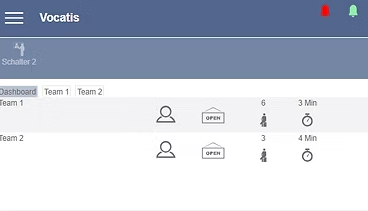
iSign Silent Alarm can use your existing IT infrastructure. Alerts are distributed through a server, either on your premises or in the cloud.
The PCs required for iSign Silent Alarm are already available at your workstations. No additional hardware is needed.
Use Silent Alarm where employees work in separate offices and need to trigger an emergency alert discreetly in a critical situation.
1. Install Silent Alarm
Download the Silent Alarm client through the iSign web interface and install it on the user PCs.
Find the option under:
Administration → Advanced → Utilities
Download the installation package and run it on the relevant user PCs.
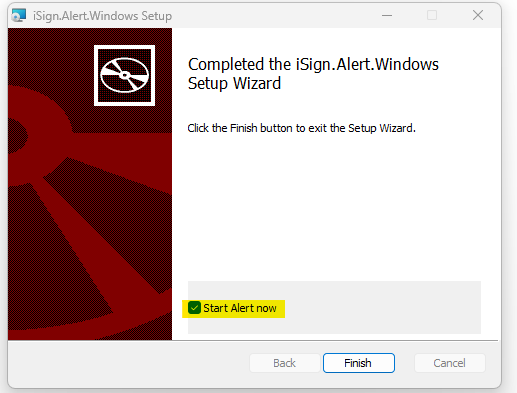
Complete the setup, then select Start Alert now at the end to start the service immediately.
2. Configure the Windows Client
After installation, you will find iSign Alert.Windows in the system tray.
To configure it:
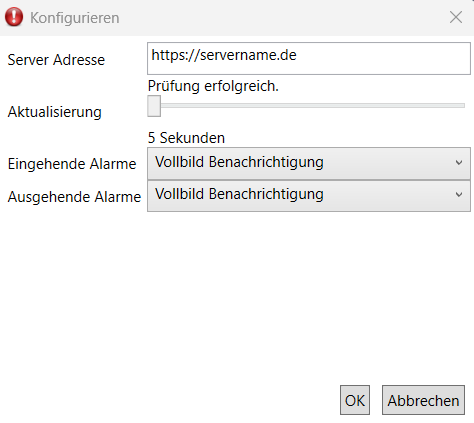
- Right-click the system tray icon and select Settings.
- Enter your server address, for example
http(s)://servername/. - Set how often the client checks for new messages.
- Select how incoming and outgoing alerts are displayed on your PC. The Windows client provides these options:
- No notification: The alert is not shown on screen and is recorded only in the background.
- Simple notification: A subtle notification appears at the edge of the screen, similar to a standard desktop notification.
- Full-screen notification: The alert fills the screen and appears over active applications. This is useful for critical or security-related messages.
3. Start iSign Alert
- Open the iSign Alert application.
- Wait for the sign-in screen to appear.
- Enter your username if you use password-based sign-in.
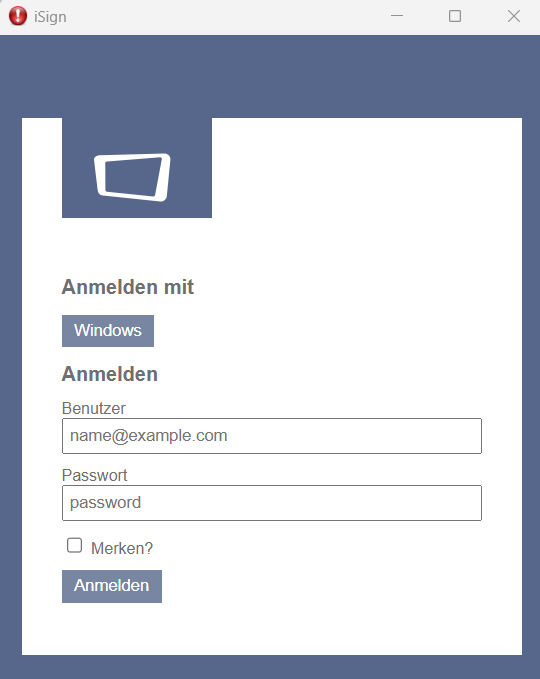
Enable Remember me if you want to sign in automatically the next time you start the application.
Windows users are usually signed in automatically through their Windows account, if configured.
4. Register a Hotkey
- Click the small arrow at the far right of the taskbar to show hidden system tray icons.
- Find the Silent Alarm icon.
- Right-click the icon.
- Select Open from the context menu.
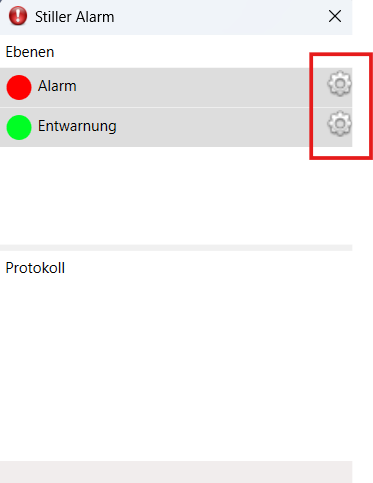
- Click the gear icon to register a key or key combination.
5. Trigger an Alert with a Mouse Click
- Click the small arrow at the far right of the taskbar to show hidden system tray icons.
- Find the Silent Alarm icon.
- Right-click the icon.
- Select Open from the context menu.
- Select Trigger. A window opens that you can position anywhere on the screen.
6. Add the Trigger to Startup
To start the trigger automatically when Windows starts, follow these steps:
Press Windows key + R.
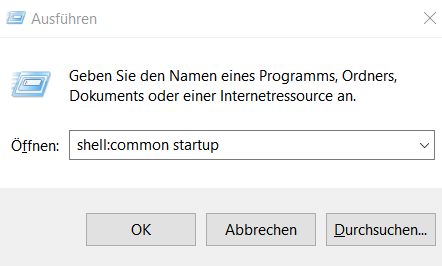
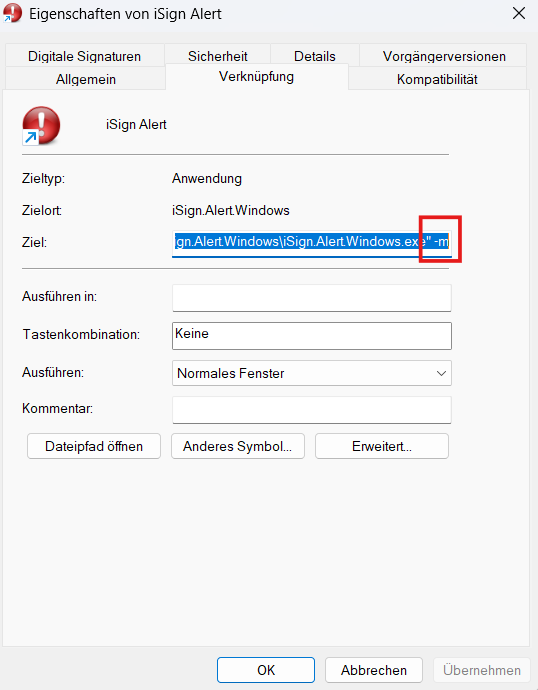
Right-click the iSign Alert shortcut and open its properties.
You can configure the trigger to start automatically with Windows using these command-line parameters:
-m: Start minimized-t: Show the trigger
The default startup parameter is -m. Change the startup entry to -m -t to show the trigger. You can also distribute this setting through Group Policy.
7. Alert Display Options (Screen and Sound)
The alert is displayed full-screen.
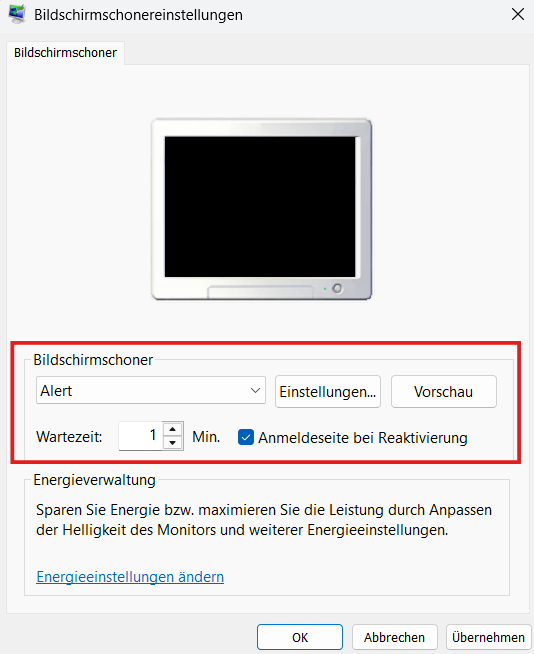
- To show alerts while the screen is locked, enable the Alarm screensaver as well.
- To make alerts audible, adjust the volume in the Windows volume mixer.

8. Alerts on a Locked Screen
- When the screen is locked, you can send and receive alerts using the included Alarm screensaver.
- The screensaver is installed automatically with the installation package and can be enabled if needed.
9. Distribute Application Settings (Administrator)
Application settings are stored in a file in the user's profile, for example:
C:\Users%USERNAME%\AppData\Local\DE_SIGNO\iSign.Alert.Windows
You can distribute this file to other clients in several ways.