Sign-In Options for External Users in iSign
iSign supports several external identity providers. The following options are included by default:
- Windows Authentication
- Azure AD
Authentication answers "Who am I?"; authorization answers "What am I allowed to do?". Available features depend on the identity provider.
Password Authentication
In iSign, password authentication means signing in with a password set in iSign. This built-in method does not require external components.
Windows Authentication
Windows Authentication uses Windows accounts for sign-in. Link each Windows account to an iSign user. Windows authenticates the account; iSign authorizes the linked user.
Windows Authentication requires a Windows Server that can authenticate the Windows accounts in use. This is usually the case when the Windows Server is in the same domain as those accounts.
Create iSign users manually, link them to Windows accounts, and assign permissions.
Single sign-on can be enabled with a Windows client and the Edge browser. Assign the sign-in account to an iSign user.
Setup
-
Make sure the iSign Server runs on Windows Server and that the Windows Server is in a domain.
-
Configure iSign to use Windows Authentication. The easiest way is to enable Windows Authentication in the iSign Server Configuration Assistant, then apply the configuration.
-
In the iSign web interface, configure iSign users under Administration > Users. When adding or editing a user, enter the linked Windows account under Windows sign-in in the format
DOMAIN\user. Always use the fully qualified account name.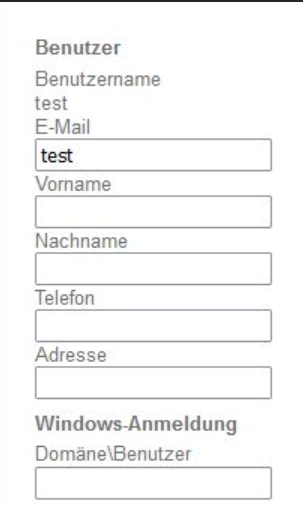
-
Users can now select Sign in with Windows on the sign-in page. If only one authentication method is enabled, it is selected automatically.

Azure AD (Add-on Module)
Azure AD Authentication uses Entra ID accounts for sign-in. Link Entra ID accounts to iSign users. Optionally, iSign users can be created automatically for Entra ID accounts. Authorization can be handled by iSign users or by Entra ID group membership.
Setup
Create an App Registration
Create an app registration in Microsoft Entra by following Microsoft's app registration tutorial.
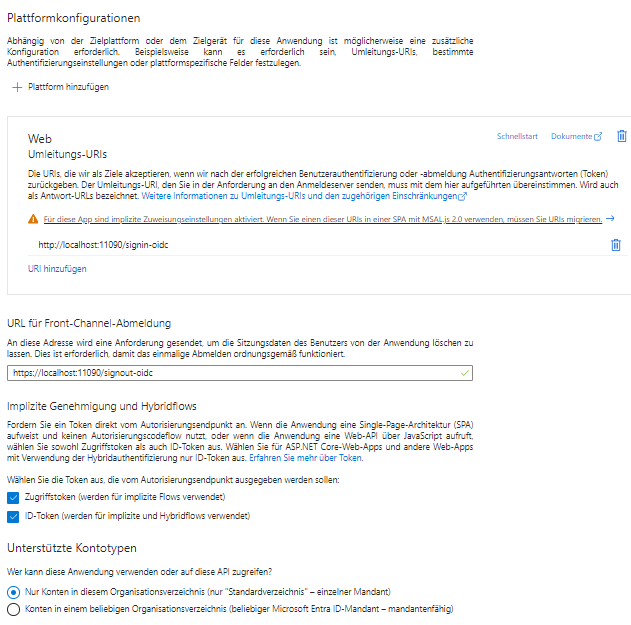
Configure the app authorization and add a Web platform with these values:
- Redirect URI:
https://YOUR_DOMAIN/ID/signin-oidc - Front-channel logout URL:
https://YOUR_DOMAIN/ID/siginout-oidc - Access tokens: Yes
- ID tokens: Yes
After registering the app, configure the platform under Authentication.
Configure iSign
Create a file named 90-azuread.json in the configuration directory (default: C:\ProgramData\designo\isign-server\instance\default\data\config.d) with this content:
{
  "identity": {
    "loginMethods": ["azureAd", "forms"],
    "createAccountWhenExternalUserNotFound": true,
    "copyRolesFromExternalIdentity": true,
    "azureAd": {
      "Instance": "https://login.microsoftonline.com/",
      "TenantId": "TENANT-ID",
      "ClientId": "CLIENT-ID"
    }
  }
}
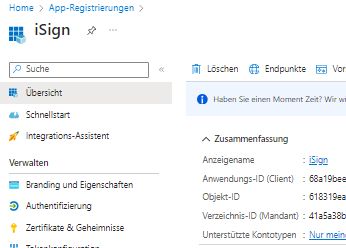
Replace TENANT-ID and CLIENT-ID with the values from your app registration. They are shown as Directory ID and Application ID in the overview.
Create iSign Accounts
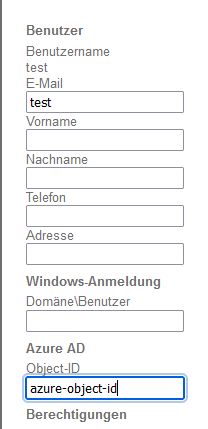
Each user needs an iSign account. Link it to Azure AD using the Object ID. There are two ways to do this.
With "createAccountWhenExternalUserNotFound": true (see above), users authenticated through Azure AD can create their own iSign accounts. They are prompted once at first sign-in. The user's email address is used as the user name.
With "createAccountWhenExternalUserNotFound": false, users cannot create their own accounts. An administrator must add the Azure AD Object ID in user management:
Authorization
You can copy role assignments from Azure AD into iSign. This is enabled in the configuration above. Roles from Azure AD and iSign are combined.
Follow Microsoft's guide to add app roles. For iSign to recognize a role, its Value must match exactly. Other fields can be set as needed.
Available iSign roles:
| Value | Description |
|---|---|
admin | Administrator |
library | Access to the Library |
program | Access to the Program Schedule |
vocatis-control | General access to Vocatis |
vocatis-supervise | Vocatis supervision |
signpost-operator | Edit Signpost |