iSign DC: Vocatis Windows App

At a Glance
Vocatis WinCall is a Windows client for the Vocatis queue management system. It displays called numbers and status information directly in the Windows taskbar and notifies staff in real time about new calls and queue changes.
The Vocatis Windows App (Vocatis WinCall) shows key information from the Vocatis queue management system in the Windows taskbar.
Features:
- Shows currently called numbers
- Shows the status of counters, workstations, or waiting areas
- Notifies staff about new calls
- Provides quick access to the queue overview
- Runs in the background without an open browser window
- Ideal for staff who need continuous or occasional updates about calls
Benefits:
- No need to keep a browser session open
- Low resource usage
- New calls are immediately visible in the taskbar
- Quick access to relevant Vocatis features
Vocatis manages visitors, calls numbers, and directs customers in government offices, clinics, banks, universities, and other organizations.
Installation Methods
Wenn Sie das Video laden, wird eine Verbindung zu YouTube hergestellt. Dabei können Daten an Google übertragen werden. Sie können Ihre Einwilligung jederzeit in den Cookie-Einstellungen widerrufen.
Find iSign DC under Download.
Manual Installation
Install DesktopControl.msi on a workstation.
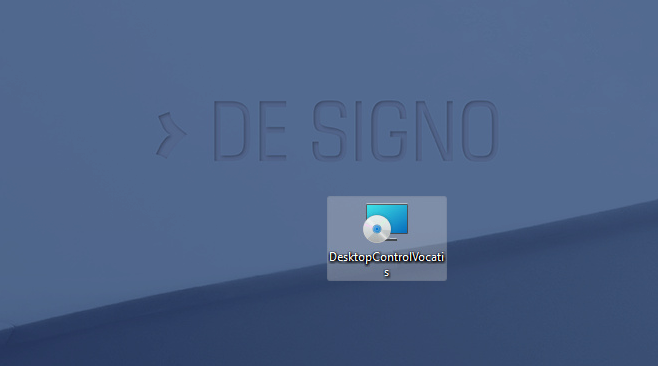
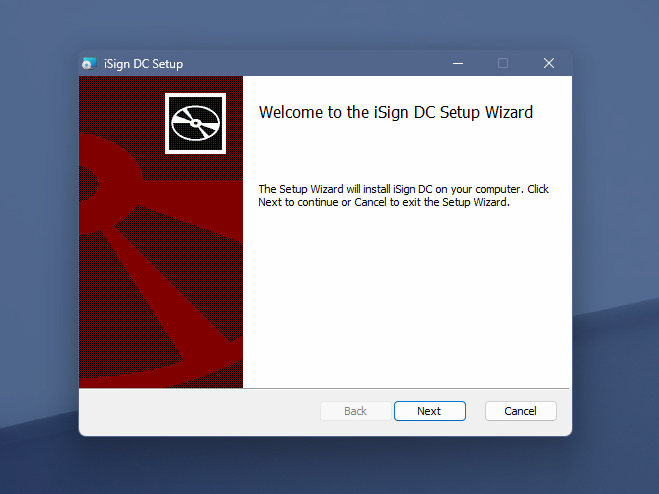
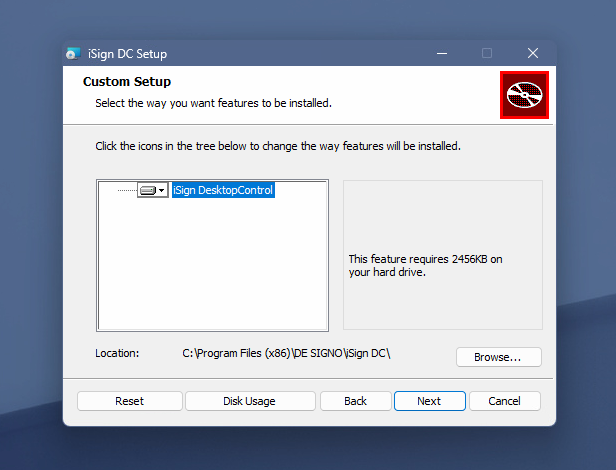
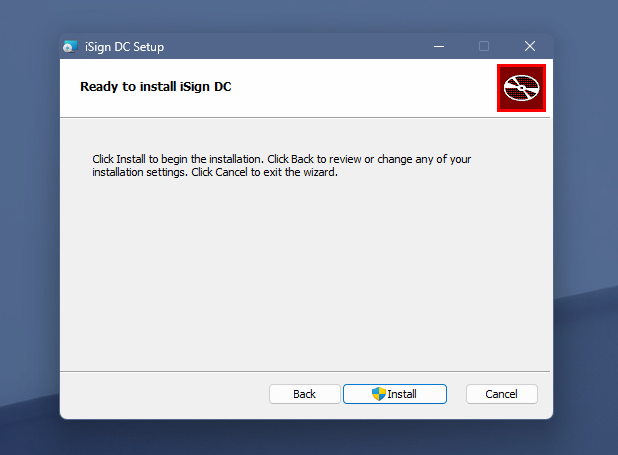
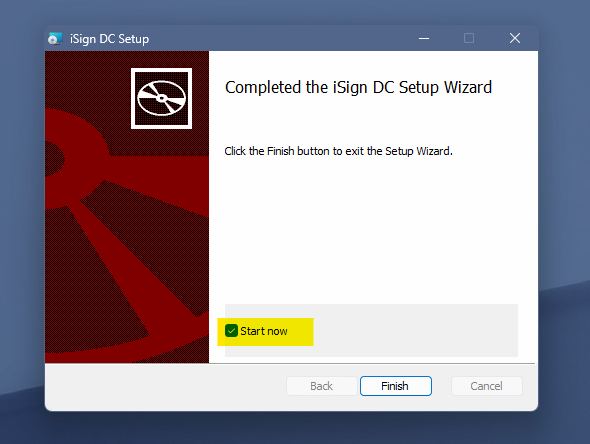
The iSign DC Windows client is now installed.
Install the .NET Desktop Runtime
iSign DC requires the .NET Desktop Runtime.
If it is not installed, download it when prompted.
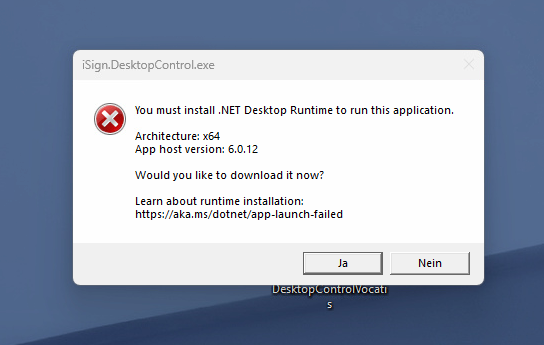
Confirm by selecting Yes.
You will be redirected to Microsoft's .NET page. The download usually starts automatically.
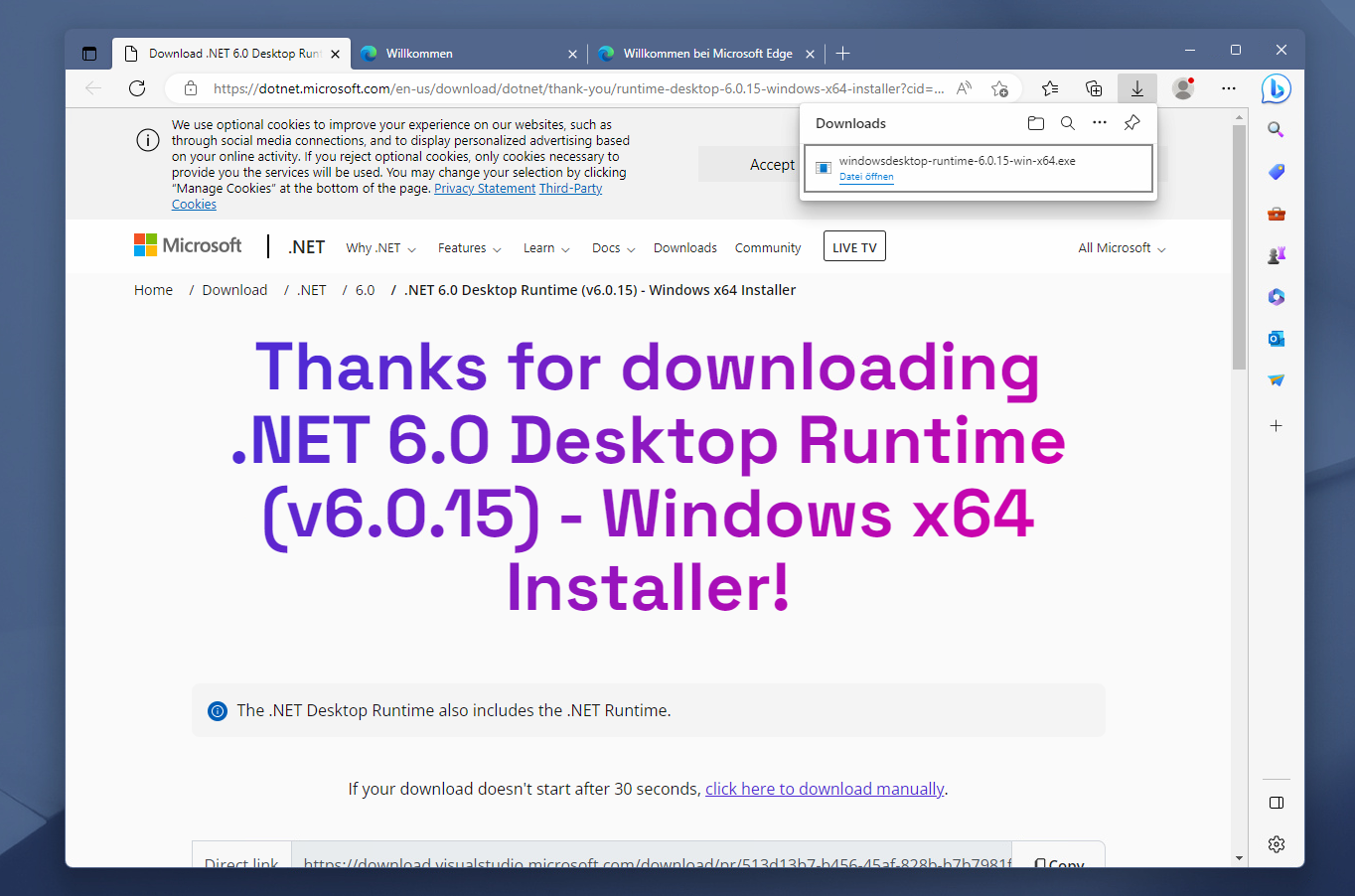
After downloading, open the file to start the installation.
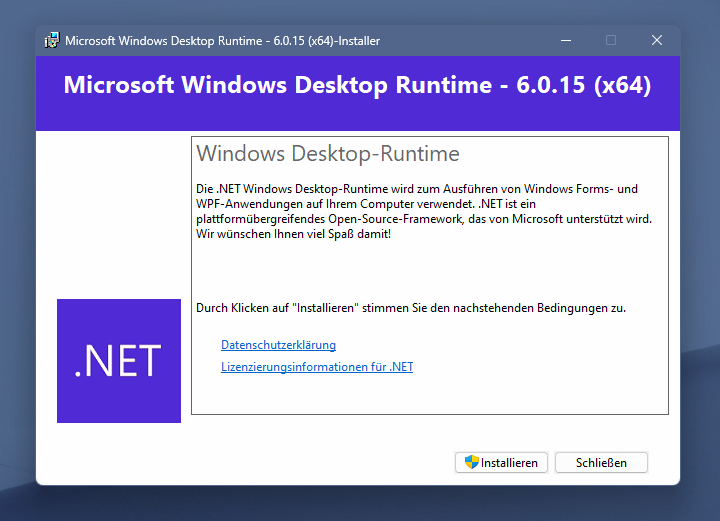
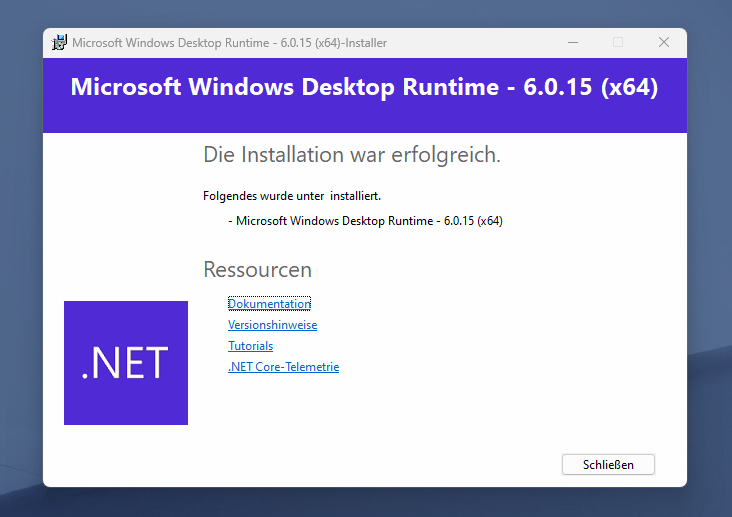
Close the window after installation completes.
Start the Windows client from Start > All apps.
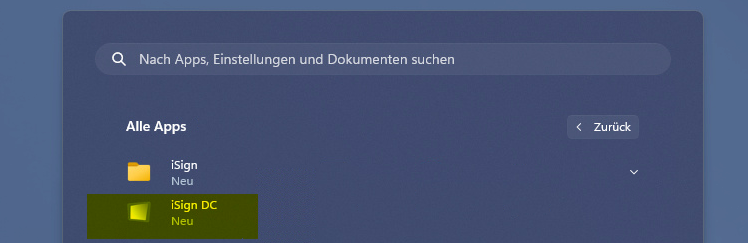
Configuration
Server address
Enter the server address or the direct URL to the Vocatis web interface.
Start with Windows
Automatically starts the iSign DC Windows client when the system starts.
Prevent closing
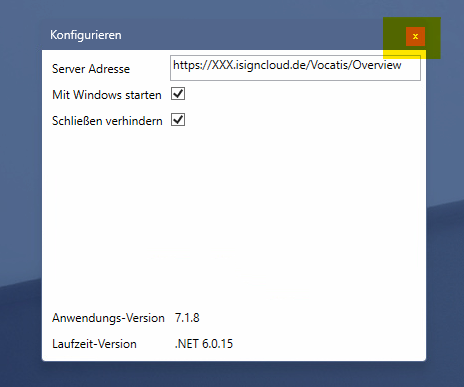
When you click the red X, a confirmation pop-up appears to prevent accidentally closing the window.
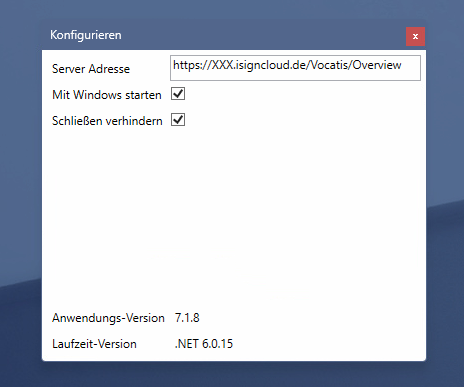
Close the setup window after initial configuration.
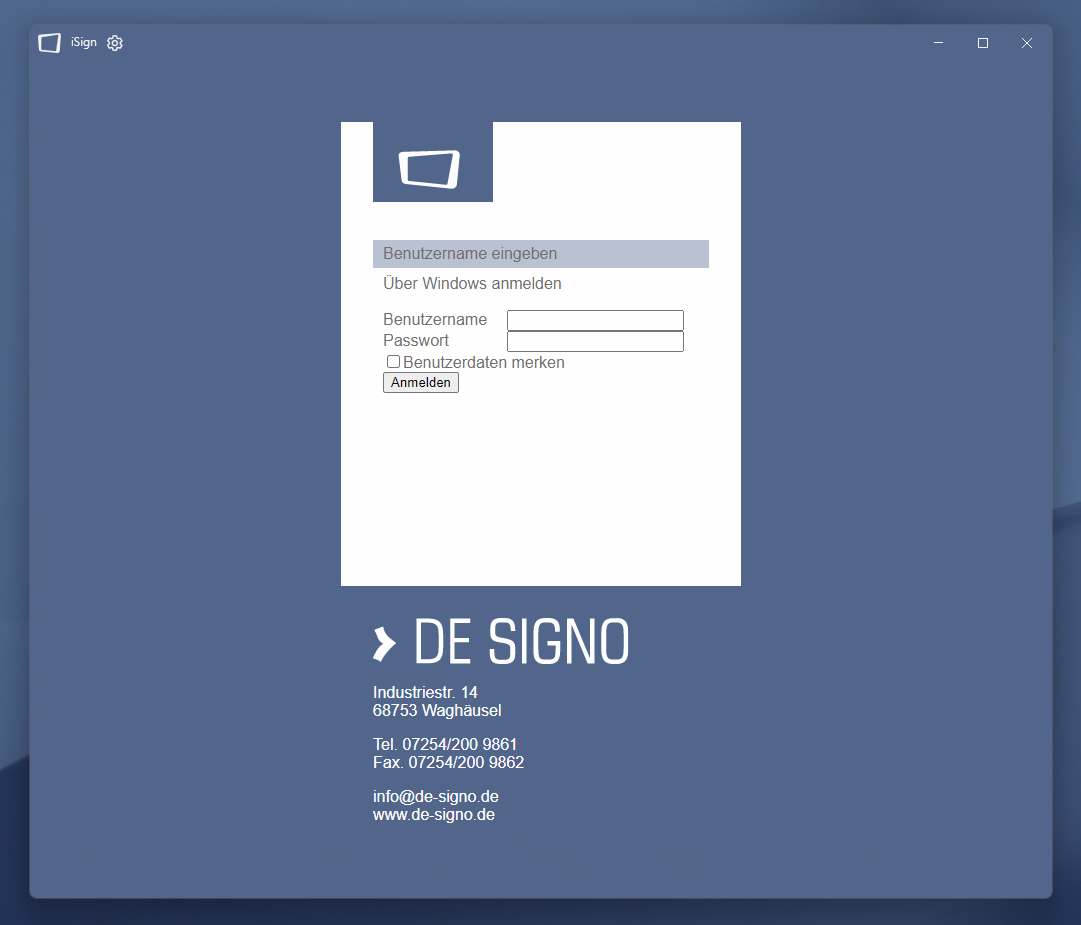
Sign in to the Windows client
You can also sign in through Windows or Entra ID.
After signing in, the client opens the folder selected above, in this example Vocatis.
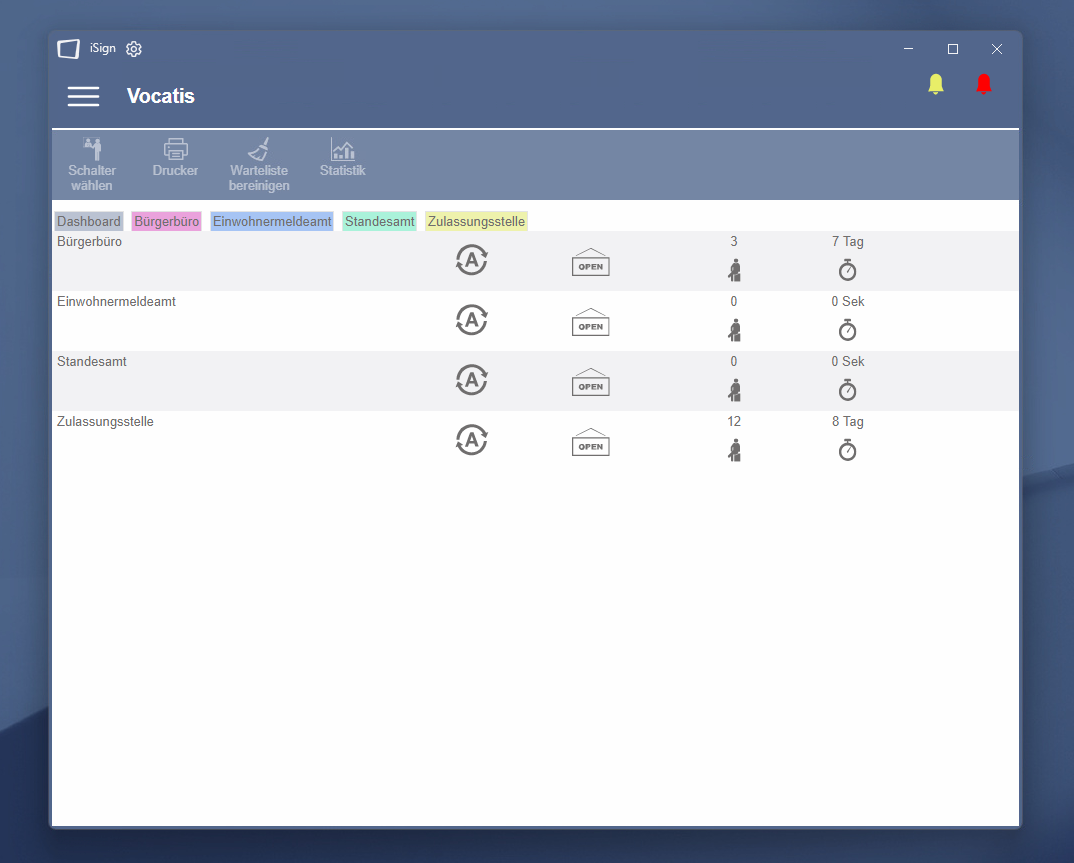
Setup is complete.
Software Distribution
You can deploy DesktopControl.msi through a software distribution system. Application settings can be changed in the user profile at:
%LOCALAPPDATA%\DE_SIGNO\iSign.DesktopControl_Url_jjo5kedho330n05aewvs3rlnt2woahrk\7.1.0.0\user.config
For example:
C:\Users\User\AppData\Local\DE_SIGNO\iSign.DesktopControl_Url_jjo5kedho330n05aewvs3rlnt2woahrk\7.1.0.0\user.config
Or in the application directory at:
%ProgramFiles(x86)%\DE SIGNO\iSign.DesktopControl\iSign.DesktopControl.dll.config
For example:
C:\Program Files (x86)\DE SIGNO\iSign.DesktopControl\iSign.DesktopControl.dll.config
User settings take precedence over application settings. The files are not interchangeable. You can copy the user settings file from a manual installation.
You can edit the configuration files with a text editor. Do so carefully: an error in a configuration file prevents the program from starting. Errors are recorded in Windows Event Viewer under Applications.
Available options
| Setting | Type | Description |
|---|---|---|
ServerUrl | URL | Server URL (web interface). |
PreventClose | Boolean (False / True) | Prevents the program from closing. |
ShowSettings | Boolean (False / True) | Shows the icon for changing settings. |
When settings are managed by an administrator, set ShowSettings to False to prevent users from changing them.