Toolbar Extensions (JSON) for Vocatis
You can customize the toolbar in the iSign user interface. For example, the Vocatis browser toolbar can include a link to an appointment calendar.
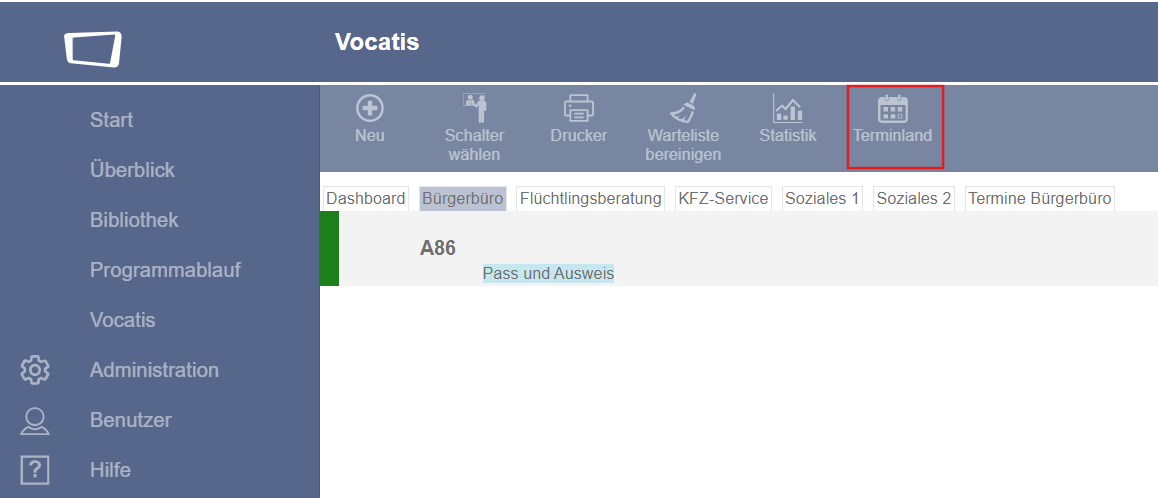
Example Toolbar Extension
Example of a complete file: toolbar.json
{
  "extensions": {
    "vocatis_called_start": [
      {
        "text": "Appointment",
        "icon": "/assets/images/calendar.svg",
        "tooltip": "Terminland",
        "target": "newtab",
        "link": "{referenceId}"
      }
    ],
    "vocatis_queue_end": [
      {
        "text": "Terminland",
        "icon": "https://YOUR.CLOUD.com//assets/images/calendar.svg",
        "tooltip": "Open the Terminland page",
        "target": "newtab",
        "link": "https://www.terminland.de/YOUR_CALENDAR/intern"
      }
    ],
    "vocatis_new_start": [],
    "vocatis_edit_start": [
      {
        "text": "Appointments",
        "icon": "/assets/images/calendar.svg",
        "tooltip": "Terminland",
        "target": "newtab",
        "link": "{referenceId}"
      }
    ]
  }
}
note
You can configure multiple extensions. Download the sample toolbar.json. The icons are located under:
C:\Program Files\DE SIGNO\iSign-8.0.21\iSign.WebControl\wwwroot\assets
Adjust the iSign version in the path. After an update or upgrade, copy any custom icons manually to the new version folder.
Windows:
C:\ProgramData\designo\isign-server\instance\default\data
Linux:
/usr/share/designo/isign-server/instance/default/data
Create toolbar.json in this directory:
touch toolbar.json
Then open it:
nano toolbar.json
Paste and customize the code above. Save with Ctrl+O, then exit with Ctrl+X.
Restart the server:
sudo isign-server-docker-apply-config
info
Changes to toolbar.json may require a server restart or an application refresh.