User Interface
The Vocatis user interface lets you manage queues and numbers easily, either in a browser or with the Vocatis Windows App. See the Vocatis Windows App guide.
Open the Vocatis Module
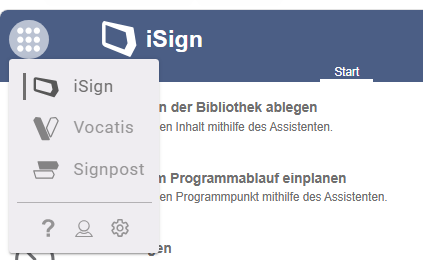
Click the app launcher (the nine-dot icon) and select Vocatis.
Dashboard
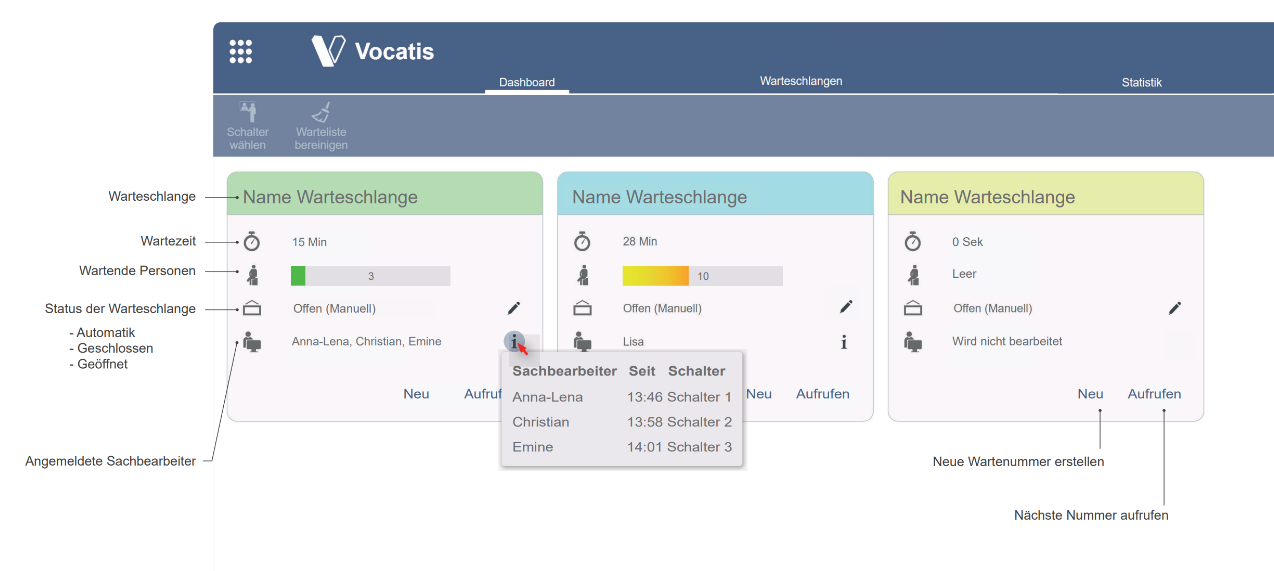
The dashboard provides an overview of all queues you are authorized to access.
- Open tickets: Shows the current number of tickets in each queue.
- Wait times: Shows the longest active wait time for a ticket.
- Active operators: Shows logged-in operators who have been active within the last 15 minutes.
- Queue status: Shows whether each queue is open or closed.
Queues
Show or Hide the Queue Overview
Use Queues to show or hide the left sidebar. This sidebar is the queue overview: each queue appears in its own colored section with its status and number of waiting tickets. The ticket list appears to the right and shows the numbers from the selected queues.
View Multiple Queues
You can open multiple queues at the same time and view them in one overview.
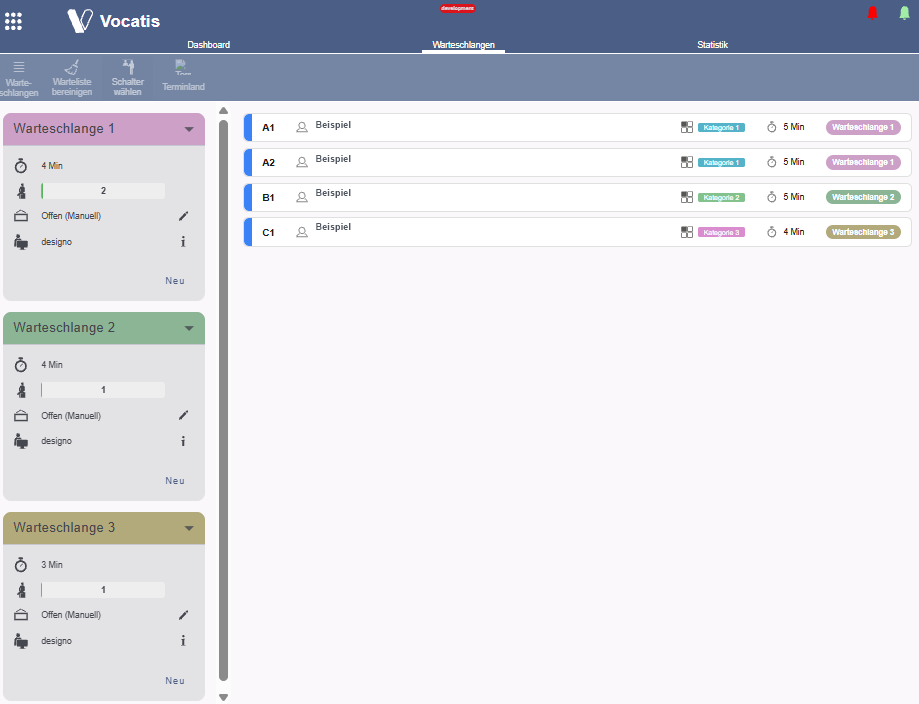
Each open queue appears in its own colored section in the left sidebar. The tickets from all selected queues appear together in the list on the right, sorted by priority. The color marker on each ticket shows which queue it belongs to.
Select a Counter
Select a counter before calling a ticket.
To select a counter:
- Open Select Counter.
- If multiple counters are configured, select the one you want to use. This step is not needed when only one counter is configured. Its call destination is displayed.
- When a ticket is called, the selected counter and ticket number appear together on the call display. Waiting visitors can see which counter the assigned operator is waiting at.
Open or Close a Queue
Queues can be opened and closed manually or automatically.
Automatic control is based on the open and close settings configured by administrators.
The current status of each queue is shown on the Dashboard, where it can be changed using the pencil icon:

The following options are available:
| Option | Effect |
|---|---|
| Open queue | The queue is opened manually. This overrides the automatic limit. |
| Close queue | The queue is closed manually. This overrides the automatic limit. |
| Automatic limit | The queue is controlled automatically again based on opening hours and capacity. |
Status Indicator
The load of the waiting area is indicated by color:
| Color | Meaning |
|---|---|
| Red | Queue closed |
| Yellow | High demand |
| Green | Queue open |
In addition, the status shows whether it was set manually by a staff member or whether the queue is opened and closed automatically (e.g. Open (Manual)).
Clean Up the Queue
Tickets from the previous day or earlier are deleted automatically unless they have been called or parked. This also applies to edited tickets.
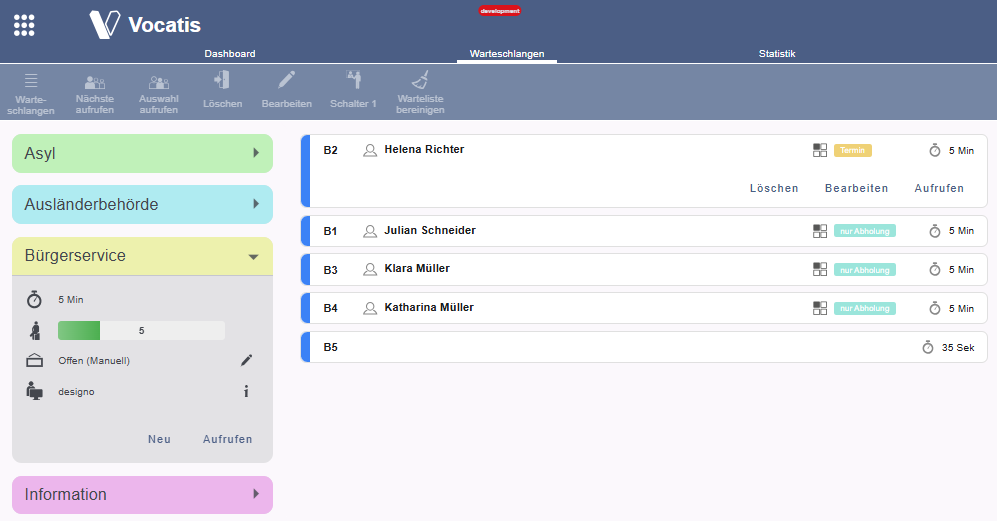
Hold Appointment Tickets
Administrators can configure the import to hold appointment tickets until their scheduled appointment time.
Find this setting under Administration → Vocatis → Appointments.
Held appointment tickets are highlighted in yellow in the overview. While held, they can be called only by selecting them directly. Automatic calls through the regular queue controls are unavailable during this time.
Once the scheduled appointment time is reached, the ticket is available for regular calling.
Call Numbers
The ticket list shows waiting numbers with their requests and wait times. The highest-priority ticket is at the top.
Tickets can be called automatically by priority or selected manually.
Ticket Status
The color marker on the left of each ticket shows its current status:
- Blue – Waiting: The ticket is waiting in the queue to be called.
- Green – Called: The ticket has been called and appears on the call display.
- Red – Parked: The ticket has been temporarily held and can be called again manually.
- Yellow – Appointment ticket: The ticket is held until its scheduled appointment time. After that, it is available for regular calling.
Call Next
On the dashboard, Call on a queue card calls the highest-priority ticket in that queue. With multiple queues open, Call next in the top toolbar calls the highest-priority ticket across all open queues. The previously called ticket is released.

Call a Selected Number
Select the ticket you want in the queue list and click Call. The resulting dialog shows the called ticket and provides further actions.
Actions in the Call Dialog
The dialog for a called ticket provides these actions:
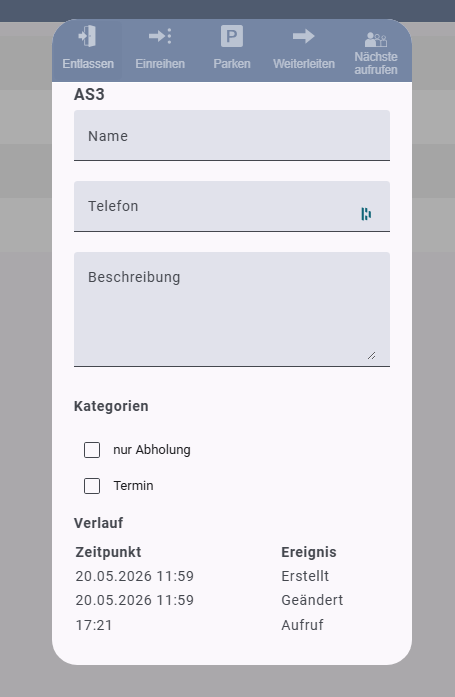
| Action | Description |
|---|---|
| Release | Marks the ticket as completed. It no longer appears on the call display. |
| Requeue | Returns the ticket to the list so it can be called again with Call next. |
| Park | Holds the ticket until it is selected and called with Call selected. |
| Forward | Forwards the ticket to another queue for further handling. |
Create Ticket Numbers Manually (Reception Module)
The Reception module lets staff create ticket numbers manually as an alternative to issuing tickets at a terminal. Select the queue for the ticket. You can create a number from the dashboard or from the relevant queue.

For more information about the Reception module, see Vocatis add-on modules.
Manage Numbers
Forward a Number
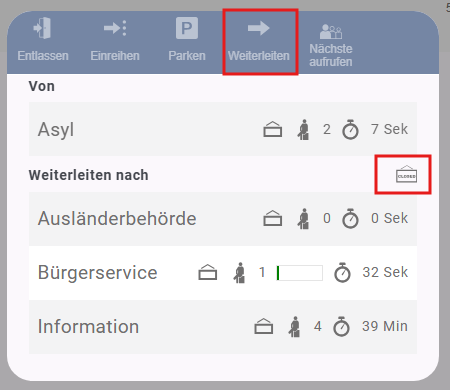
You can forward a ticket to another queue, for example, if a visitor needs help from another department or case worker. The existing ticket number is retained.
Enable Hide closed queues to show only available queues when forwarding a ticket. Closed queues are not offered as destinations, so tickets can be forwarded only to queues that are currently open.
Delete a Number
Select a ticket in the queue and delete it if needed. It is removed from the queue and can no longer be called.
Edit a Number
You can manage and update an existing ticket. Available actions include:
- Add information: Add notes or other details to the ticket.
- Print ticket: Print another ticket for the selected number.
Statistics
Users with the vocatis-supervise permission can download statistics.
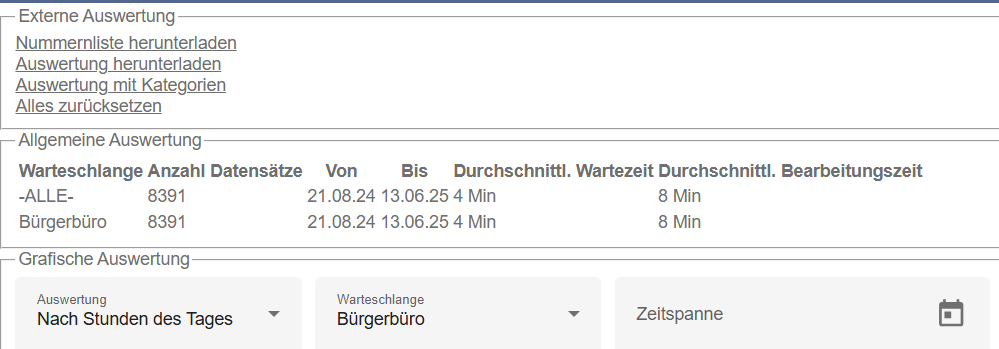
| Report | Description |
|---|---|
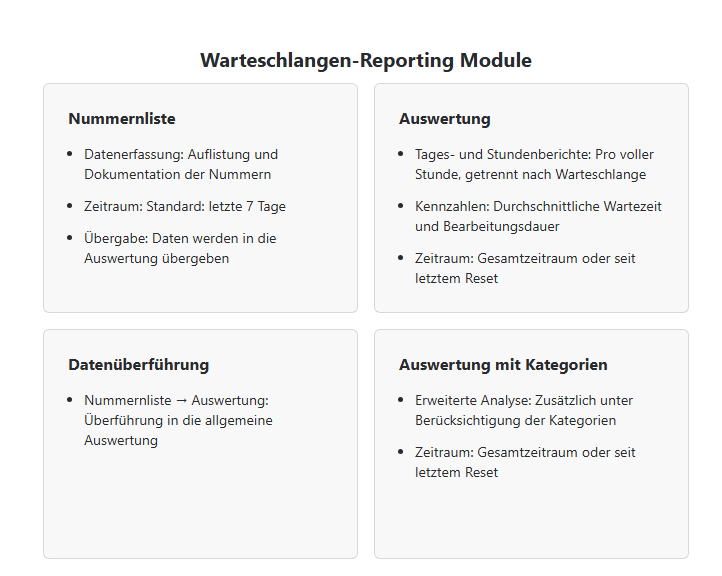
| Number list | Lists and documents tickets (default period: last 7 days). Afterward, data is moved to the report. |
| Report | Daily and hourly reports, grouped by queue, with average wait and handling times. Covers the entire period after tickets are moved from the number list to the general report, or the period since the last reset. |
| Report by category | Also includes categories. Covers the entire period after tickets are moved to the general report, or the period since the last reset. |