Scrolling Text
Template for displaying scrolling text.
You can enter the scrolling text manually or display it using data from a linked data source. With a data-driven template, content is imported automatically from the connected data source.
1. Create a Window
The font size adjusts automatically to the height of the selected window. On a Full HD monitor, a height of 80 px works well; for UHD, use 160 px, and so on.
You can display scrolling text at any size and position on the monitor.
For more information, see Configure Windows.
2. Create Content
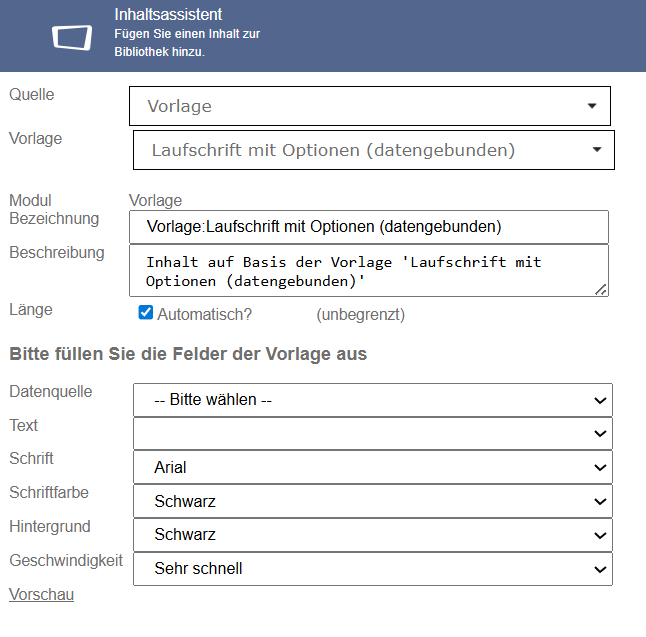
Go to Library > Add > Template.
Select the appropriate template:
| Template | Description |
|---|---|
| Scrolling Text | Black text on a white background; enter the text manually. |
| Scrolling Text (data-driven) | Black text on a white background; content comes from a data source. |
| Scrolling Text with Options | Choose the text and background colors. |
| Scrolling Text with Options (data-driven) | Choose the text and background colors; content comes from a data source. |
3. Preview
Check how the content will look:
- Click Preview.
- In the left column, select the window configured for the display.
- The preview shows the content planned for that window.
If you open the page over HTTP without a certificate, content is not displayed in the browser. It is still visible on the monitor.
4. Schedule the Content
Schedule the content directly from the Library or through the Program Schedule.
If there is additional content in the background, such as a queue number from the "List/Multi List" template, schedule it in its own window to prevent it from being overlaid. Our templates generally adapt to the display resolution and the amount of content.