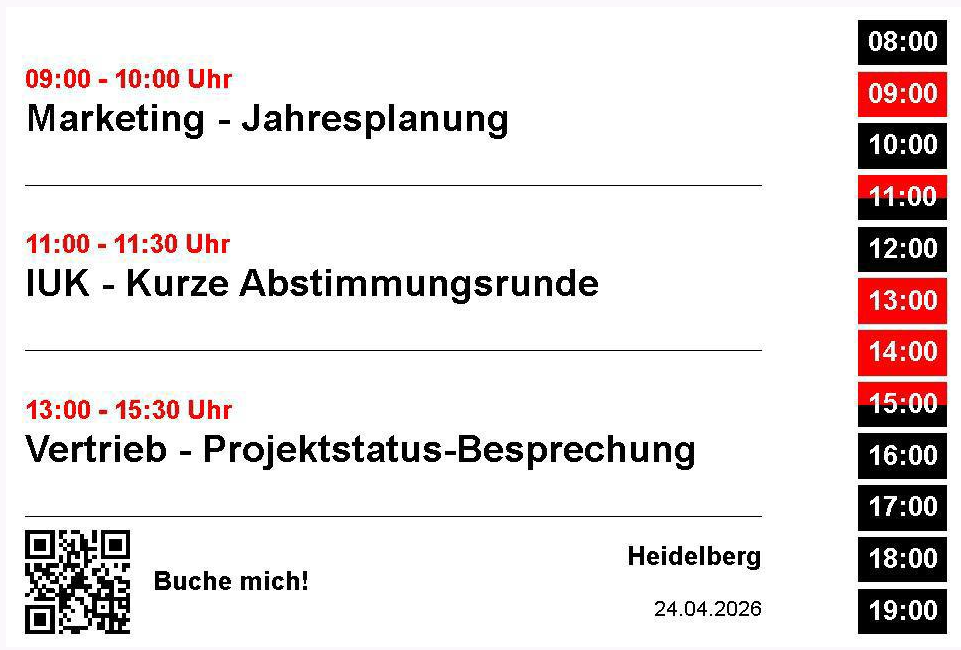
Room Schedule
Template for displaying room schedules.
Templates for Displaying Room Schedules, Such as Meeting Rooms
The following templates are available:
- Single room schedule, detailed
- Single room schedule, detailed (free text)
- Single room schedule, detailed, with separate date and time
- Double room schedule
- Double room schedule with separate date and time
- Triple room schedule
- Triple room schedule with separate date and time
- Room schedule list
- Room schedule list with separate date and time
Open them through Library > Add:
- Source: Select Templates from the drop-down menu.
- Under Template, select the template you want from the drop-down menu.
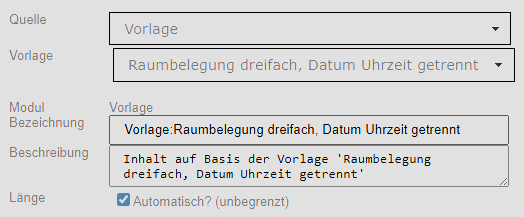
The templates generally have the same structure. You can change the module name or description to make templates easier to identify later.
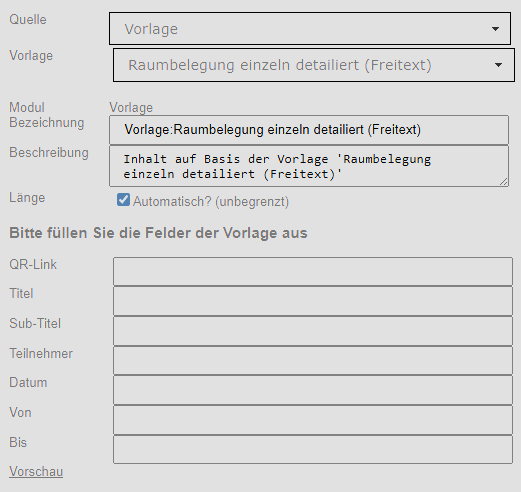
The Single room schedule, detailed (free text) template is the only one where you can enter data manually.
All other templates use data sources. The room schedule template is used below to explain the fields.
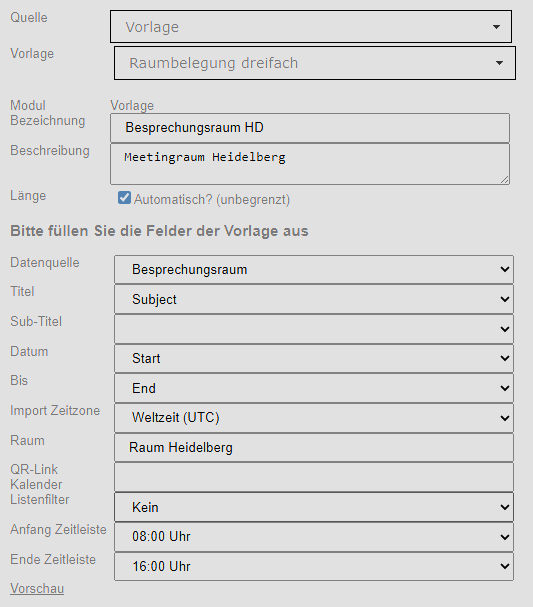
Data source
Select the data source containing the appointments. Create data sources under Data Sources.
Title
Select Subject from the drop-down menu.
Subtitle
Add additional information to display, if needed.
Date
Select Start.
Until
Select End.
Import time zone
Select the desired time zone.
Room
Enter the desired room name manually.
QR link
Enter a link here, if needed. It will be displayed as a QR code on the EPD.
List filter
Select when an appointment should be hidden from the EPD.
Timeline start/end
Set the start and end times for the timeline on the EPD.
Preview
Select Preview to see how the content will look on the EPD.