Import Appointments from Terminland
1. Edit the Terminland Export Link
Terminland provides an export link that looks like this by default:
https://www.terminland.de/YOUR_CALENDAR/export/?username=TLSoap&password=XXXXXXXX&filter1=status&value1=-1&data=appointment&filter2=fromdate&value2=
Replace XXXXXXXX with your password.
2. Adjust the Link to Query the Current Day
To import only appointments for the current day into iSign, add the following section to the export link:
&filter2=fromdate&value2={NOW:yyyyMMdd}&filter3=todate&value3={NOW:yyyyMMdd}
Your complete link should then look like this:
https://www.terminland.de/YOUR_CALENDAR/export/?username=TLSoap&password=XXXXXXX&filter1=status&value1=-1&data=appointment&filter2=fromdate&value2={NOW:yyyyMMdd}&filter3=todate&value3={NOW:yyyyMMdd}
Replace XXXXXXX with your actual password.
3. Edit the Link in a Text Editor
We recommend editing the link in a text editor to make sure it does not contain spaces or errors.
4. Configure the Import in iSign
After creating the adjusted link, add it to iSign to import appointments for the current day.
Configure the appointment import
-
In the iSign web interface, go to Administration and select Data Sources.
-
Click Add to create a data source for the appointment import.
-
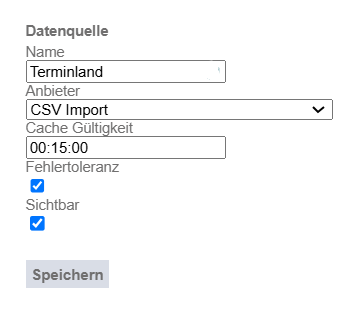
Create the data source.
-
Select the data source and click Data Source in the top bar. Finish by clicking Save.
-
Select View data and check whether the data is displayed.
Configure the remaining options under Administration > Vocatis > Appointments.
Is no data displayed?
Test the link independently of iSign by copying it into a browser. Does it download a CSV file? This may take up to 5 minutes. If the data is not displayed, make sure the entire Terminland address is accessible and that no network or proxy restrictions are blocking access.
Can you download the data, but it is not displayed in the iSign web interface?
Network Service / proxy: See Why does iSign Setup show the "Cache Failed" error?.
Problem: Data Import from an Internet Link Is Unavailable
If a data source, such as an appointment import, retrieves information from the internet, the iSign Server needs continuous internet access. The iSign services run under the Network Service account. If you use a proxy server, configure it for this account so the services can access the internet.
The iSign Configuration Assistant can apply proxy settings system-wide. To do this, disable Enable proxy settings for individual users. You can then configure the proxy through Windows Internet Options.
Proxy authentication must allow the server to connect without manual entry of credentials. MAC authentication is one common way to enable an automatic and secure connection.
Alternative: If the proxy does not allow the required settings, use a scheduled task to download the data from the internet. The task supports stored credentials. You can use curl, for example:
curl http://terminland.eu -x http://10.10.10.10:8080 -o terminland.csv