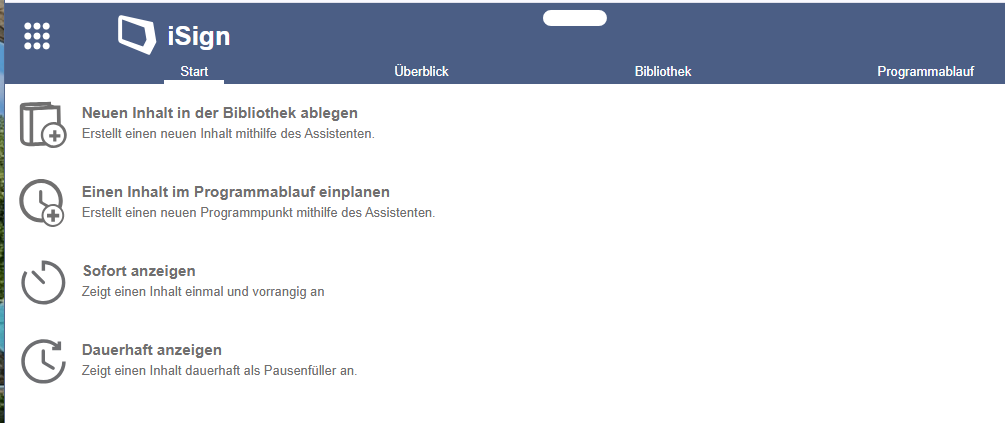
Start
The Start section provides four shortcuts for managing, scheduling, or immediately displaying content.
1. Add New Content to the Library
Add new content, such as images, PDFs, HTML files, videos, or templates, to the content library.
2. Schedule Content in the Program
Choose when and on which display content should appear automatically. This is useful for scheduled content such as opening hours, holiday notices, or recurring events.
- Select content from the Library.
- Set the start time, end time, and days of the week.
- Assign one or more displays.
3. Display Content Immediately
Display content right away on one or more screens, regardless of the program schedule.
- The selected content appears immediately.
- It takes priority over other scheduled content.
- It remains visible until you stop it manually or another item overrides it.
4. Display Content Continuously
Use this option when content should remain visible without a time limit, for example, room signs, static notices, or long-term information.
- The content is scheduled as a continuous display and remains visible until it is removed or replaced.
- Continuous content has the lowest priority and can be overridden by immediately displayed content, such as through shortcut 3.