Library
In iSign, the Library is a central place to manage content such as templates, text, images, and videos. You can organize content in folder structures that you create to keep it clear and easy to find.
From the Library, you can assign content directly to display units. This lets you assign videos and other media to the desired displays based on context, without having to configure them more than once.
Video Tutorial
Wenn Sie das Video laden, wird eine Verbindung zu YouTube hergestellt. Dabei können Daten an Google übertragen werden. Sie können Ihre Einwilligung jederzeit in den Cookie-Einstellungen widerrufen.
Features
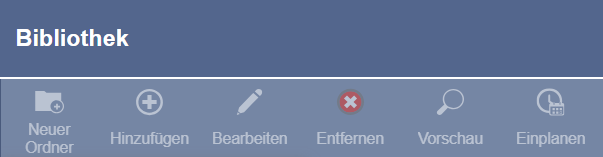
| Feature | Description |
|---|---|
| New folder | Create folders and folder structures. |
| Add | Opens the Content Assistant to add new content. |
| Edit | Edit content and folders. |
| Remove | Remove content and folders. |
| Preview | Preview how your content is displayed. Select a display unit with a suitable resolution on the left. This selection affects only the preview. |
| Schedule | Opens the Program Assistant to assign content to a display unit. |
Folders
Your content is created and managed in the Library. Initially, you will find three folders:
- Favorites: Shows the content you use most often.
- My content: This content is visible only to you and can be managed only by you.
- Shared content: All users can view and edit this content.
You can create custom folder structures in My content and Shared content.
Creating Content
The following content types are supported:
- Image files: JPEG, PNG, SVG
- PDF documents
- Videos: MP4, WEBM
- Templates: data-driven and manual
- HTML pages
- Playlists
To create content, first select the folder where you want it to be stored.
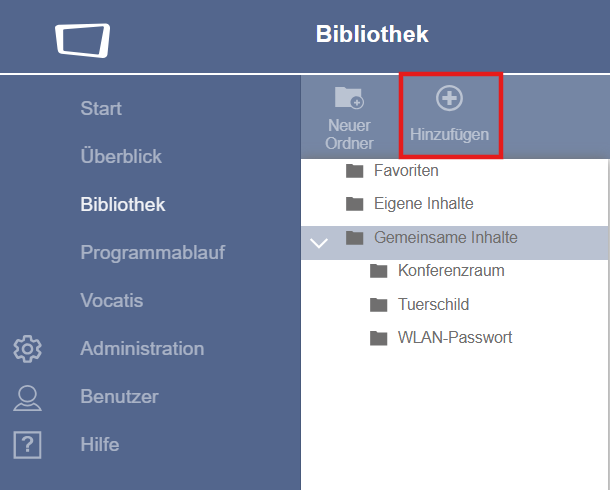
The Content Assistant opens:
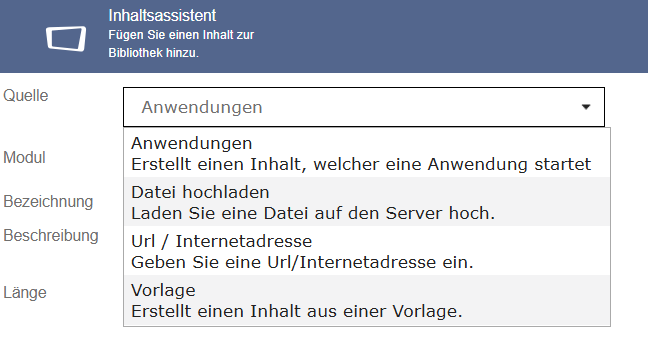
Select a source:
Applications:
- Screen Saver: Prevents burn-in when an image is displayed continuously.
- Playlist: Creates a fixed sequence of content stored in the Library.
Upload file:
- JPEG, PNG, SVG
- PDF files
- Video files
URL / web address:
Create content from an HTML page or website.
Scheduling Content
Select the content and click Schedule to assign it to a display unit. The steps for selecting a target, event, recurrence, and priority are described in the Program Assistant. are described in the Program Assistant.