EPD Wi-Fi Connection
Battery consumption increases significantly while Wi-Fi is unavailable.
Signal Strength
iSign Web Interface
The Wi-Fi signal strength shown in Overview is the value from the last successful connection. It is not updated in real time, so the last recorded value remains visible even if the EPD loses its connection to the server.
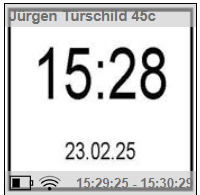
Hover over the Wi-Fi icon to display the RSSI value.
MQTT
You can read the Wi-Fi signal strength in MQTT Explorer.
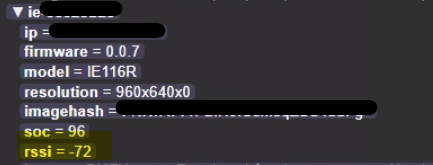
RSSI (Received Signal Strength Indicator): Measured in dBm (decibel-milliwatts).
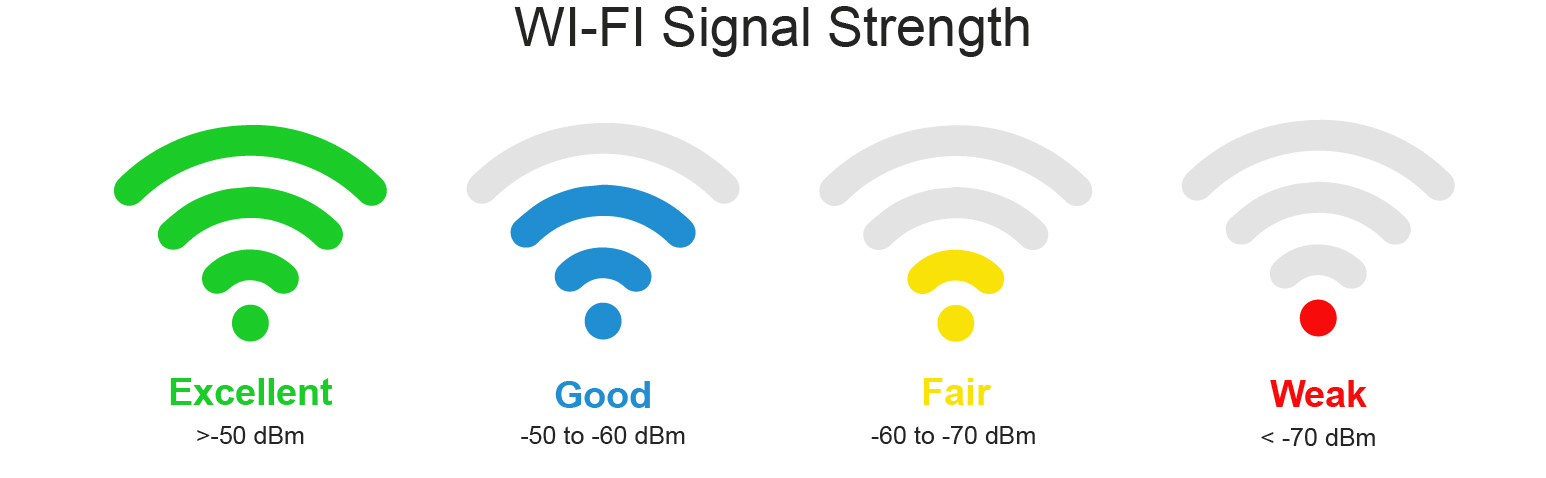
Effects of a Weak Signal
Insufficient Wi-Fi signal strength can have the following effects:
- Delayed or missed updates
The EPD needs an active Wi-Fi connection to download new content. If the signal is too weak:- Synchronization may take significantly longer or fail.
- The display continues to show the last stored content.
- Increased battery consumption due to repeated connection attempts
- The EPD repeatedly tries to connect.
- Each attempt uses additional power because the Wi-Fi module remains active longer.
- This can significantly reduce battery life.
- Disruptions to time-critical updates
- If the SIGNA display is used for room information, Wi-Fi passwords, or meeting room bookings, it may show outdated information.
Roaming
Roaming is the process of switching between multiple Wi-Fi access points.
Firmware up to 1.2.1
EPDs stay connected to the current Wi-Fi access point until the connection is completely lost, even if a stronger signal is available nearby.
EPDs connect automatically whenever Wi-Fi is available.
Starting with firmware version 1.2.2, devices also support roaming and connect to the access point with the strongest signal. Without roaming, the access point changes only when the current connection is no longer available.
When configuring through FWUpdate or the console, roaming must be enabled explicitly. Roaming is always enabled when configuring through a browser.
Firmware
Use fwupdate terminal (EPD FWUpdate Tool) to view Wi-Fi connection details in the console.
Useful commands include:
scan: Lists nearby access points and their signal strength.wifi_info: Displays information about the current Wi-Fi connection.join <ssid> <password>: Connects to a Wi-Fi access point. Options:--roamenables roaming.--bssid=<bssid>connects to a specific access point (bssidis the access point's MAC address).
join_eap: Connects to a Wi-Fi access point using WPA2-Enterprise.ping: Sends an ICMP request.nslookup: Resolves a DNS name.set_ip: Sets a static IP address.set_dns: Sets a static DNS server.enable_dhcp: Enables DHCP.