Upgrade from iSign 7.1 to iSign 8.0
A new license is required for this upgrade. Request it early, ideally at least one week in advance, to ensure a smooth process.
If iSign 7.1 is already installed, your existing data is migrated automatically.
Follow these steps:
Server Installation
1. Update iSign 7.1
- Make sure the latest version (7.1.14) of iSign 7.1 is installed. Create a ticket and we will provide the version.
- Install it if necessary.
- Important: Complete the Configuration Assistant.
2. Install iSign 8
- Start the iSign 8 installation.
- After installation, run the Configuration Assistant again.
- Make sure Migrate iSign 7 data is selected.
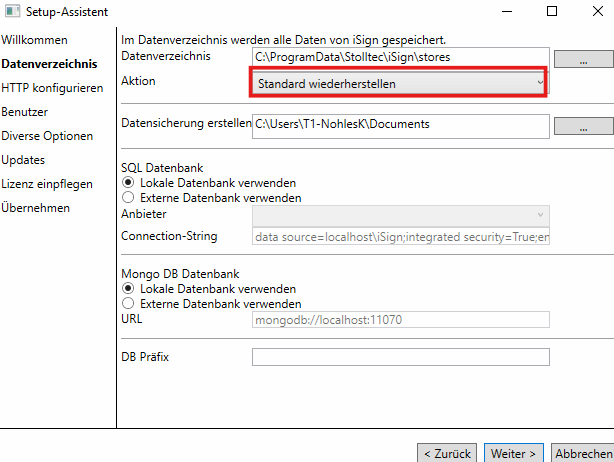
3. Configure the Data Directory
- When configuring the data directory, select Restore default.
- Continue with the configuration as usual, then select Apply.
4. Update the Player PCs
- Important: Update the player PCs to iSign 8 as well to ensure full compatibility.
By default, the user admin created during configuration has access only to the administration area. They do not initially have access to other protected areas. You can use this account to assign permissions to other accounts.
Vocatis
Reassign queue access rights
Go to Administration → Vocatis → Queues.
Select the desired queue and adjust its access rights.

Users
Note that iSign 8 includes a new User module. Windows users must therefore be reconfigured in the system. We recommend exporting users from iSign 7.1.14 first to make it easier to create them again.
Silent Alarm
Data from the Silent Alarm module cannot be migrated. All entries must be recreated manually after the upgrade.