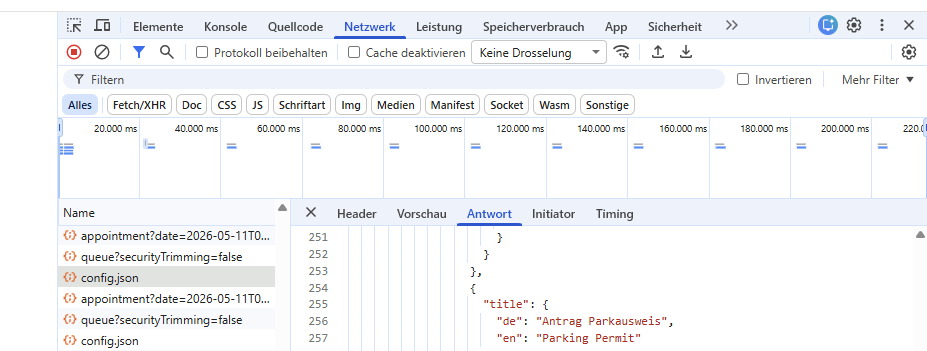
Which config.json Is Active?
To find out which config.json is currently being used, follow these steps:
- Open the desired template in the Library or directly in the Program Schedule, then click Preview. If the content is already scheduled, open it directly in the Program Schedule to check the configuration currently in use.
- Open the browser's Developer Tools by pressing F12.
- Select the Network tab.
- Reload the page, for example by pressing F5.
- Find
config.jsonin the list of loaded files and open it.
The file shown is the configuration currently loaded for the preview.
info
If the current config.json is not shown, do the following:
- Open the template in the Library for editing.
- Click Preview.
- Then click Save.
The currentconfig.jsonis generated and loaded again.
Example shown in Chrome. The display may vary depending on your browser.
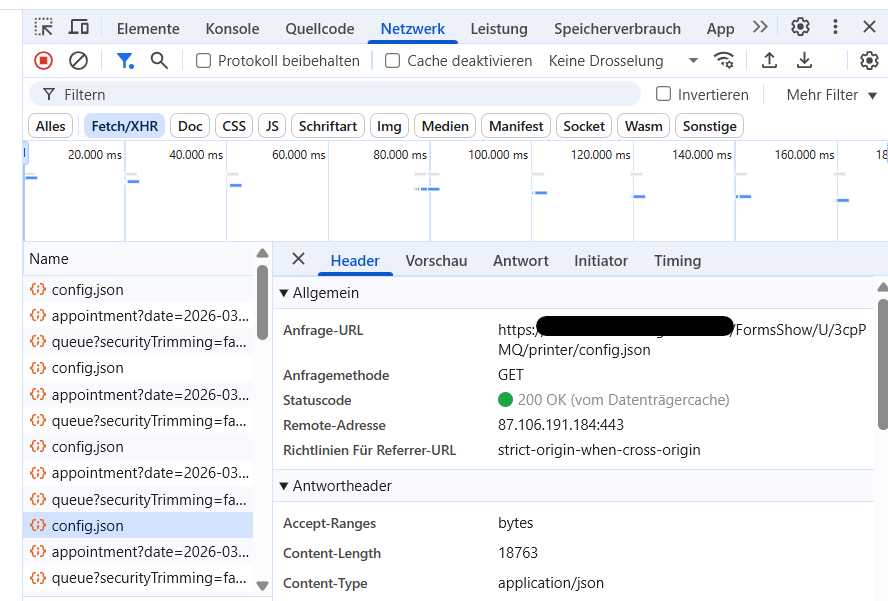
The complete config.json is shown under Response.