How Can I Enable an Audible Alert When a New Queue Number Is Created After a Period of Inactivity?
info
You can receive an audible alert when a new number appears after a period of inactivity. This also works when you use the Vocatis Windows App client.
To enable the audible alert:
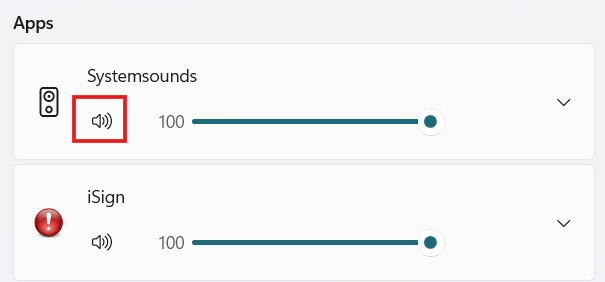
- Open the volume mixer and make sure System Sounds are enabled and set to an audible volume.
- In your browser, even if you use the Windows client, make sure notifications for the web interface are set to Allow.
- Open the empty queue and select Call next.
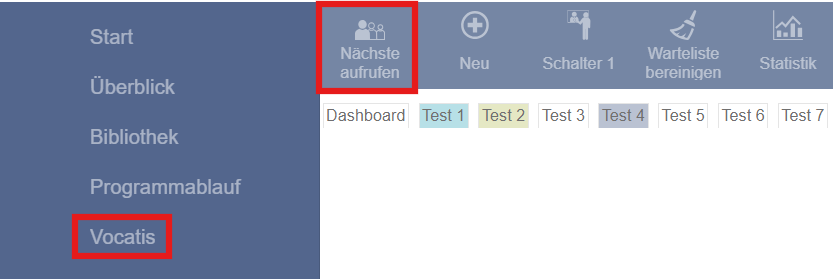
- Leave the window open. You can minimize the browser or Windows client window.
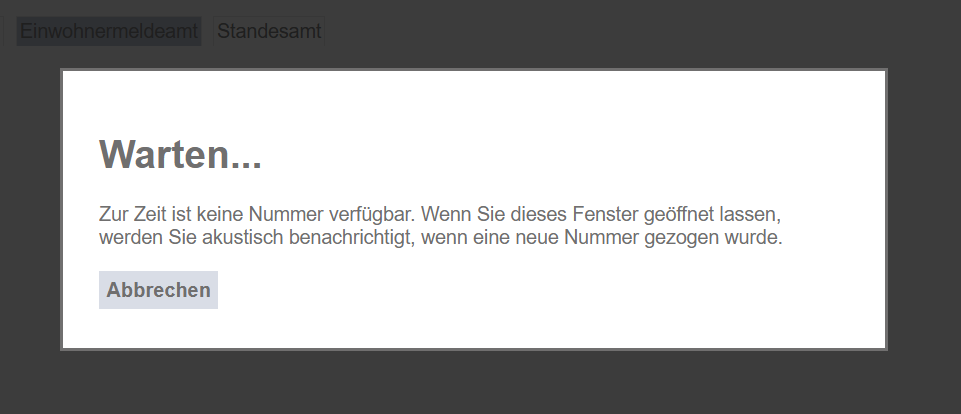
- Switch to the queue you want to manage. If it is empty, select Call next. A window opens. Leave it open to receive an automatic notification when a new queue number is created. In the Vocatis Windows App, you can minimize this window to the taskbar.
info
The audible alert plays only if the browser window is active, System Sounds are enabled, and browser notifications are allowed. Open the web interface in a current Chromium-based browser, such as Microsoft Edge or Google Chrome. Grant the required permissions using the control to the left of the address bar. Its appearance may vary between browsers.
