Set Up an EPD in a Browser
Configuring a large number of E-Paper Displays? Use the FWUpdate tool.
This quick guide explains how to set up an iSign E-Paper Display (EPD) for the first time by connecting it to Wi-Fi and configuring its MQTT client.
Preparation
Content is assigned to EPDs, and each display has a unique ID. We recommend recording the ID together with the location and room name, especially for door signs that are labeled and remain in the same room. After the displays connect to the server, you can enter their location names manually in the list under Administration > EPD in the web interface.
Start Configuration
You need:
- An EPD
- A USB-C cable
- A PC or smartphone with a browser
- An existing Wi-Fi network and its credentials
- An MQTT broker and its credentials
Connect
- Connect the EPD to the PC with the USB-C cable. The EPD starts and remains in setup mode for 30 minutes.
- Connect the PC to the Wi-Fi network provided by the EPD, named EPD-....
- Open this address in a browser: https://192.168.1.1
Accept the Certificate
The EPD uses a self-signed certificate to protect the confidentiality of the password. The PC cannot verify it initially, so a security warning appears. Accept the certificate. The exact steps depend on your browser and usually involve selecting Advanced and Continue anyway or Add exception.
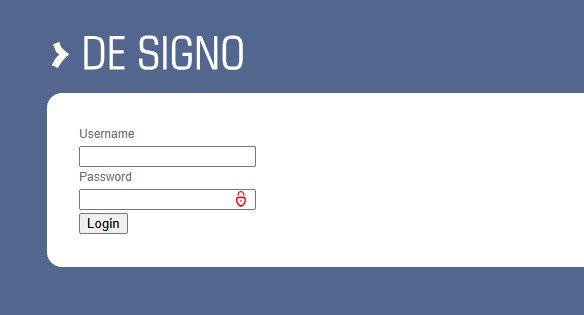
Sign In
The default credentials are:
- Username:
admin - Password:
admin
You can change the password later.
Configure Wi-Fi
- Go to WiFi and open the WiFi Mode – Client tab.
- Enable Connect to an existing WiFi network.
- Select the appropriate encryption method, usually PSK.
- Enter your Wi-Fi SSID and password.
- Click Save.
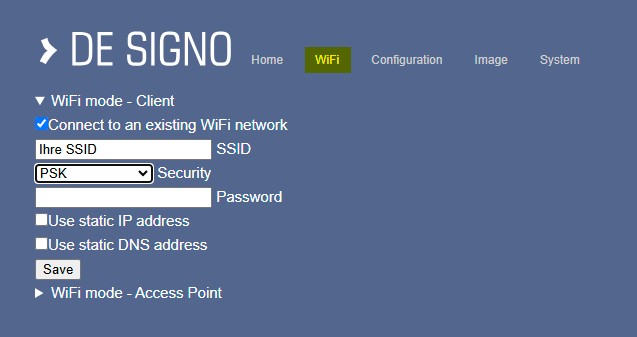
If Connect to an existing WiFi network is unchecked again after saving, the EPD could not connect to Wi-Fi. Check the credentials and try again.
Configure MQTT
- Go to Configuration and open the App and MQTT tabs.
- Under Seconds to sleep when in battery mode, enter the number of seconds between update requests.
- Under MQTT, enter the address and credentials for your MQTT server.
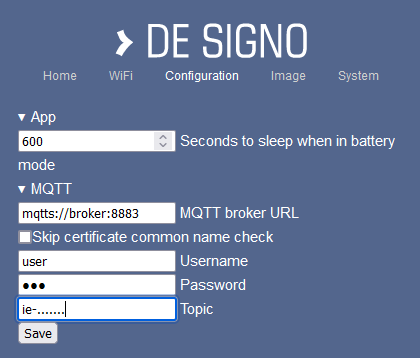
Example:
- MQTT broker URL:
mqtts://your.domain:8883 - Username:
iSign. The credentials must exactly match those configured when the player was installed. In our standard installation, this username is created automatically. - Password:
iStMMb4a. The credentials must exactly match those configured when the player was installed. In our standard installation, this password is set automatically. - Topic: Filled in by default.
Encryption is recommended for servers that are not publicly accessible and required for publicly accessible servers. Make sure the certificate is trusted by a public root certificate authority. Alternatively, enable Skip certificate common name check to skip server name verification. The Topic usually does not need to be changed. Click Save to confirm.
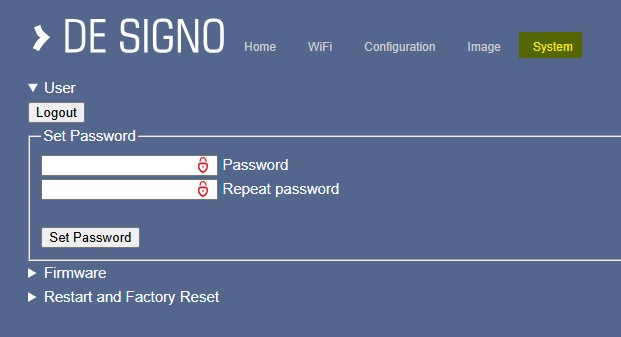
Change the Password
You can change the login password under System.
Finish
Go to System and open the Restart and Factory Reset tab. Click Restart to complete setup.
You can also change the configuration through the web interface. Use a USB cable to provide reliable power to the EPD; on battery power, Wi-Fi is available only briefly.