Update Firmware with the FWUpdate Tool
EPD Remote Firmware Update
Remote updates are available starting with firmware 1.2.3.
Use the FWUpdate configuration module to manually install current firmware on your E-Paper Displays (EPDs). This guide describes the process and required steps.
1. Download the Update Tool
Download the update tool here:
2. Preparation
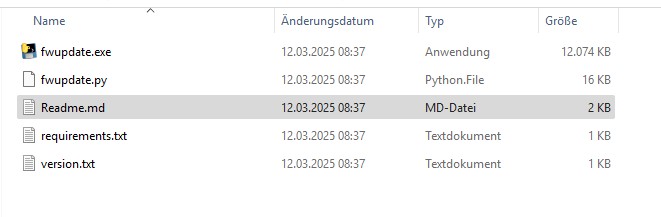
- Extract the downloaded ZIP archive to a local folder.
- Connect the EPD to the PC using USB.
- Open the Readme.md file in the extracted folder. It contains the required command lines and additional instructions.
3. Flash the Firmware
Run the firmware update in a terminal, such as Windows PowerShell.
The Readme.md contains the required command line. Adjust it as shown below:
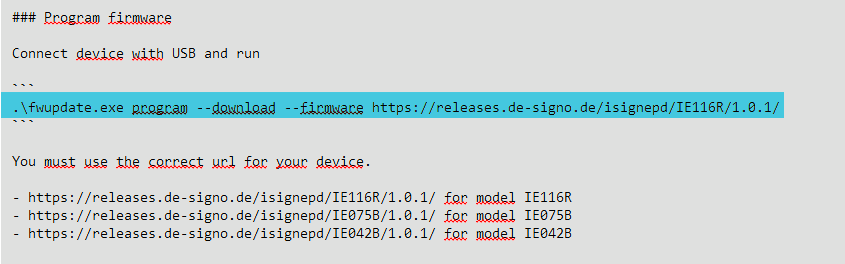
The links shown in the screenshot are examples. Select the appropriate EPD model and firmware.
Find the current links under Firmware.
- Important: Adjust the model and version at the end of the command line. The current version is available on request. A simplified update process is in development and requires firmware version 0.0.8 or later.
4. Run the Update
- In the folder where you extracted the tool, right-click an empty area.
- Select Open in Terminal from the context menu. A terminal window opens.
- Copy the command line into the terminal and adjust it as needed.

- Press Enter.
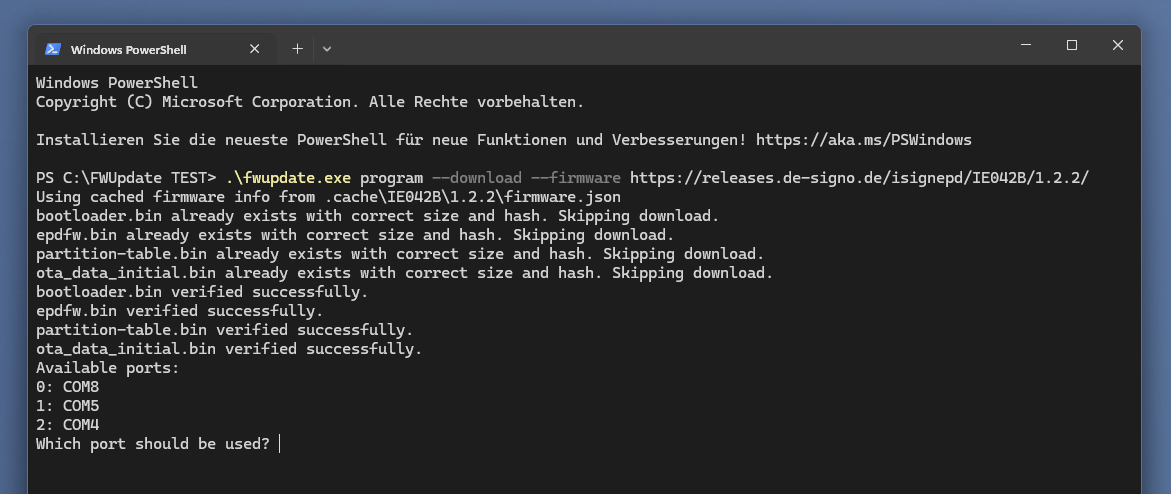
- In the window that appears, select the port to which the EPD is connected.
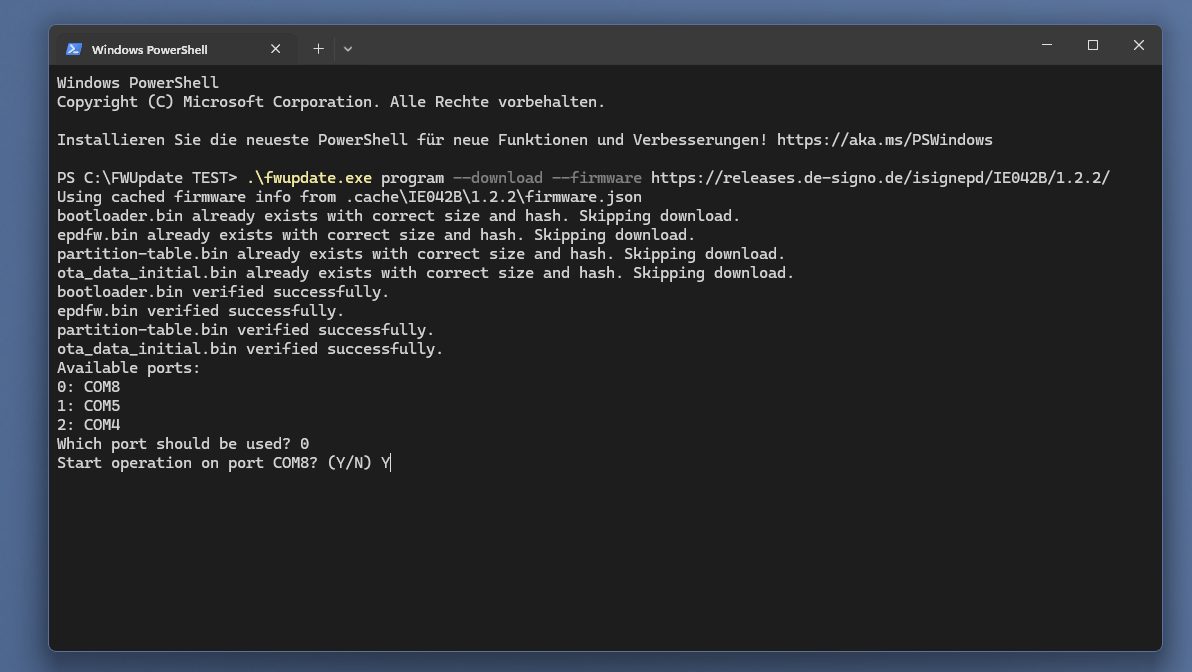
- Press Y to confirm the port selection.
5. Start the Update
The firmware update starts automatically after you confirm the port.
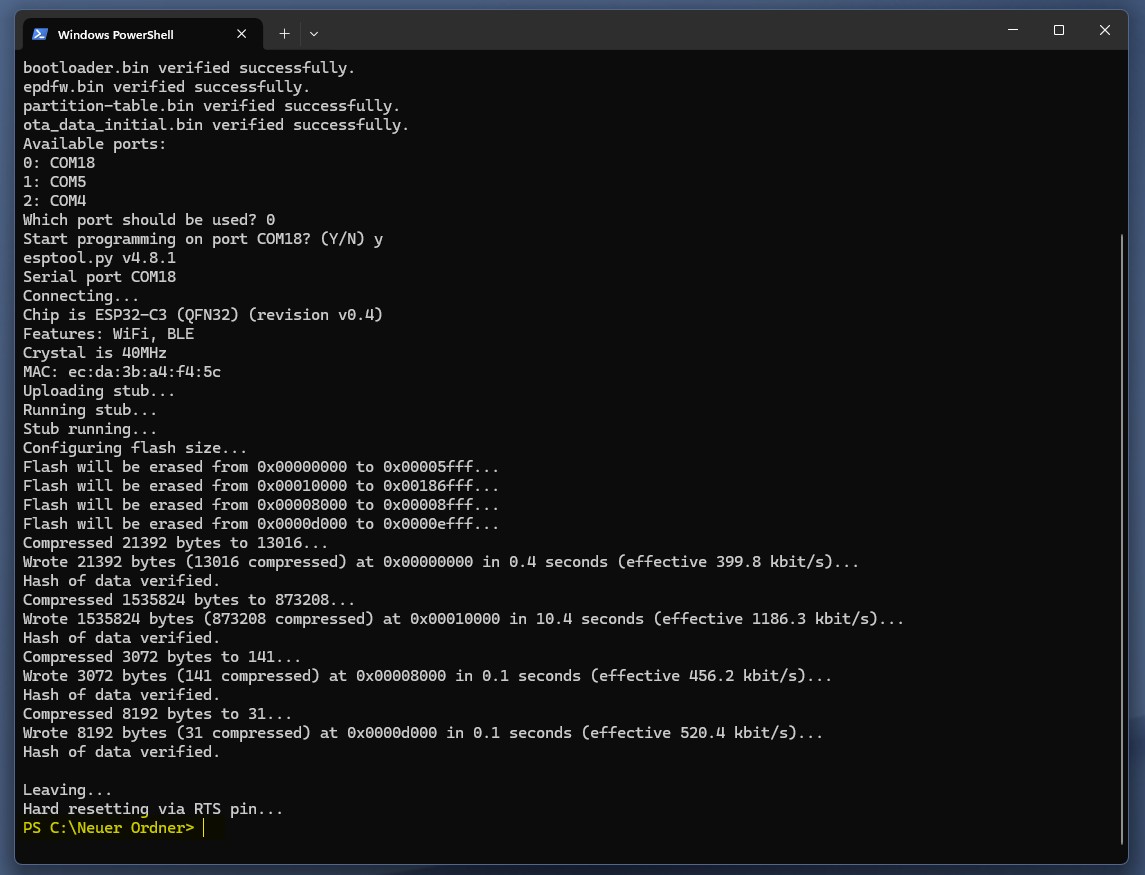
6. Finish
- The firmware update is complete when it finishes successfully.
- You can then close the terminal window.
Use only firmware versions approved for your EPD. Firmware updates are performed at your own risk. Contact Support if you have questions.