Program Assistant
Use the Program Assistant to schedule content for a display unit. Open it from Program > New, or from the Library by selecting content and clicking Schedule. Both methods open the same assistant.
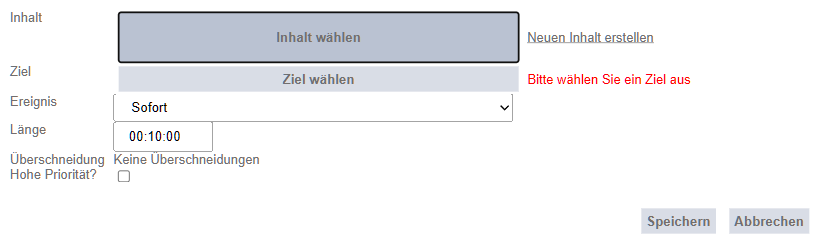
Selecting Content and a Target
Under Content, select an item from the Library. If the content does not exist yet, select Create new content to open the Content Assistant.
Then select under Target the display unit on which the content should appear. Depending on your installation, you can choose screens or windows.
Setting the Display Schedule
Under Event, select when and how the content should be displayed:
| Event | Description |
|---|---|
| Continuous | Displays the content continuously. This event has the lowest priority and can be overridden by scheduled content with a limited duration. |
| Immediate | Starts displaying the content right away. Set its run time under Length. |
| Time | Starts displaying the content at the selected Start time. Set the Length and choose whether and how the schedule repeats. |
For Time, you can select Do not repeat, Hourly, Daily, Weekly, or Custom interval. For a weekly recurrence, also select the days of the week and an end date, or enable No end?.
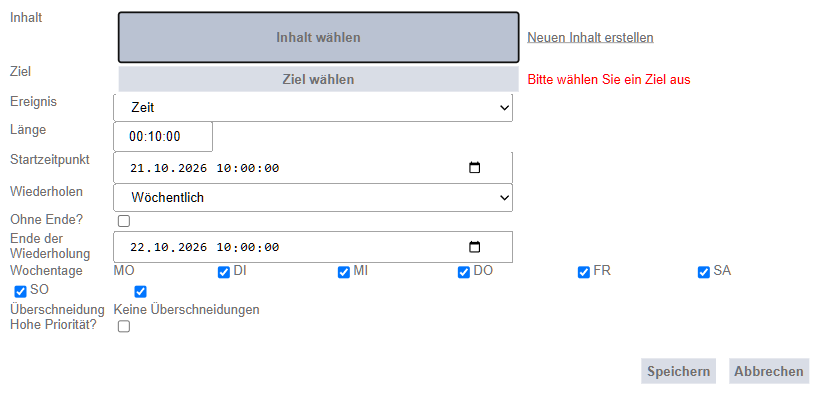
Set the start time and length so that the display period does not extend past midnight.
Reviewing Conflicts and Priority
Under Overlap, you can see whether content is already scheduled for the selected target. Select High priority? to give this content precedence so it appears in the foreground.
Review your settings and select Save to create the schedule. Select Cancel to close the assistant without saving. The saved item then appears in the program schedule.
If you edit content in the Library that is already scheduled, the updated version is applied to the program schedule.