Set and Synchronize the Windows Player PC's System Time
If the time shown on a Windows player PC or its connected displays or queue monitors is incorrect, check the Windows system time.
Sign in to the Windows player PC using the iSign administrator account and the default password iStMMb4a, or use an administrator account you created.
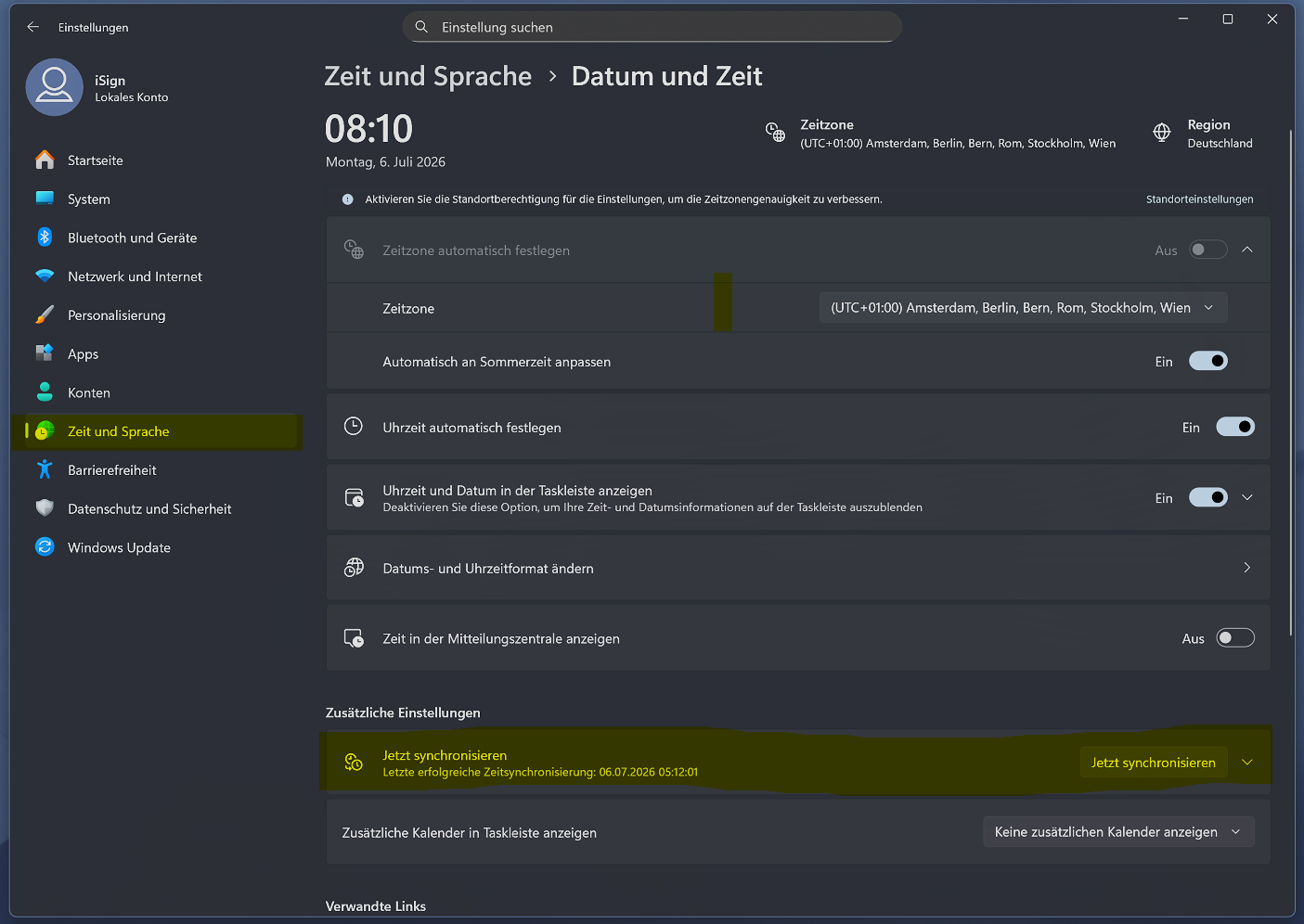
Open Settings → Time & language → Date & time and check the date, time, and time zone.
If possible, enable Set time automatically and synchronize the clock. If automatic synchronization is unavailable, set the date and time manually.
For reliable operation, we recommend using an NTP time server that the Windows system can reach. This keeps the system time up to date automatically. The player PC must be able to reach the time server over the network, such as an internet time server or an internal company server.
Restart the Windows player PC after changing or synchronizing the time. The correct time should then appear on both the player PC and its connected displays or queue monitors.