Audible Alert on the Vocatis Calling Display
If there is no sound, check the following possible causes:
Sound Is Disabled in the Template
The Speaker Is Not Active
The speaker is built into the monitor. Adjust it on the device or with the remote control. Refer to the monitor's user manual for details.
Windows Volume Settings Are Incorrect
This is a Windows setting. Make sure it is also configured for the iSign_Player user.
Domain settings may override this setting. Your IT department has the Windows credentials and can help configure it.
Audio settings
Make sure the volume is high enough. Sound is usually played through the monitor's built-in speakers. See the monitor manual for details; in most cases, you can adjust the volume with the remote control.
In Windows, make sure the volume is not only high enough but also unmuted.
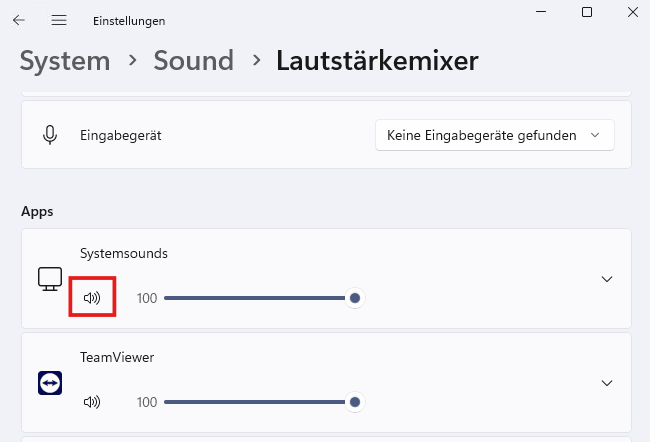
To access the iSign user account, use:
Username: iStMMb4a
For the iSign_Player user, use:
Password: iStMMb4a/*-+
You may need to temporarily disable player mode to access that user:
- Sign in to the iSign account using the credentials listed above.
- Start the iSign Configuration Assistant.
- Disable Player Mode. Note the current setting so you can restore it afterward.
- Restart the computer.
- Sign in as iSign_Player and adjust the volume.
- Sign in as iSign again.
- Start the iSign Configuration Assistant again and restore Player Mode to its previous setting.
The player then returns to its original state.